
ปัจจุบันผู้คนมักจะหลงลืมเรื่องราวและเหตุการณ์ต่างๆ ได้ง่าย เนื่องจากในยุคปัจจุบัน เวลาเป็นสิ่งที่มีค่าและสามารถสร้างคุณประโยชน์ให้กับเราได้อย่างมาก หากต้องการจดบันทึกสิ่งที่ควรทำในแต่ละวัน รวมถึงบันทึกความทรงจำต่างๆ ที่สามารถเขียนและอ่านได้ทั้งบนโทรศัพท์มือถือและคอมพิวเตอร์ โดยมีฟังก์ชันการใช้งานที่หลากหลาย Notion ถือเป็นหนึ่งในแอปพลิเคชันที่ได้รับความนิยมอย่างแพร่หลาย
Website : https://www.notion.com/
- General Notion
- How to login notion
- Type of Notion
- Quality Notion
- Create New Page
- 10 Useful Block
- Create Board View
- Create Icon
- Create cover
- Change Font
- Change Full width
- Add two column
- Share publish
- Database
- Restore data
- Choose light or dark mode in notion
- Export File
- Video Upload
- Mention Friend Name
- Reminder
General Notion
ก่อนเริ่มต้น Note-taking ควรถามตัวเองก่อนว่าต้องการ Note-taking เพื่ออะไร
- สามารถจัดการ knowledge management system นำความรู้ที่อยู่ในบริษัทให้อยู่บน platform Notion
- สามารถ Share Notion ให้เพื่อนร่วมงานด้วย
- อาจารย์สอนประยุกต์ใช้ Notion ในการสอนในมหาวิทยาลัย
How to login notion
- Open this website : https://www.notion.com/
หากยังไม่มี Account สามารถใส่ email แล้วกด Sign-up ได้เลย

- หาก Login ผ่าน google(gmail) หรือ Apple จะง่ายกว่า
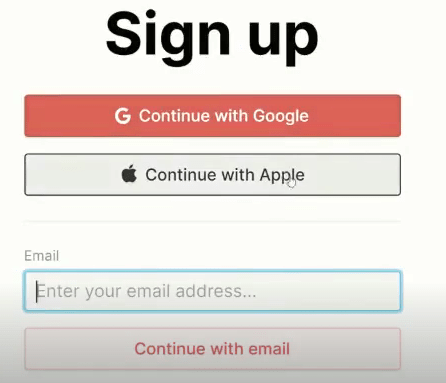
สามารถเลือก Account แล้วกด Continue with email ได้เลย
Type of Notion

| Type | Personal | Plus | Business | Enterprise |
| price | Free | 10$ per month | 15$ per month | 20$ per month |
| guest | 10 | 100 | 250 | >250 |
| Function | File 5 MB | Unlimited block | Private teamspaces | Advanced security |
Recommend Personal Plan in Notion
- หากไม่ต้องการคนอื่น duplicate link ของเราไปใช้ได้ให้เลือก disable moving เพื่อไม่โดน Copy เพจได้ใช้ได้เฉพาะ Plus plan ขึ้นไป

Quality Notion
- Unlimited guest สามารถ invite เพื่อนที่ใช้เมล์บริษัทที่อยู่ในองค์กรอื่นๆ เข้ามาดูได้
- API Access สามารถเชื่อมกับ Application ได้เช่น google calendar

SELECT * FROM customers;
Notion Shortcut : https://www.notion.com/help/keyboard-shortcuts
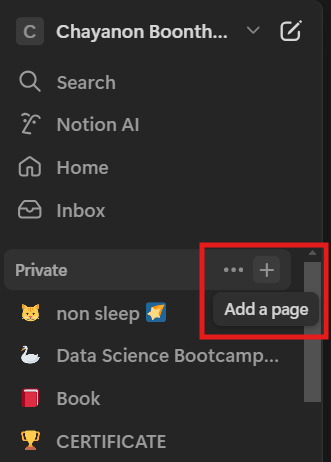
Create New Page
create new page —>Click + (Private) —> New Page
10 Useful Block
| Block | Definition | Shortcut |
| Text | สามารถเขียนข้อความ | เขียนได้เลย |
| Heading 1, 2, 3 | ใช้สำหรับสร้างหัวข้อใหญ่เรียงน้อยไปมาก หัวใหญ่สุด Heading 1 | # [ ] |
| To-do list | เป็นช่องไว้ Check-box | ctrl + shift + 4 |
| Bullet list | สร้าง จุด นำหน้า | – [ ] |
| Numbered list | สร้าง ตัวเลข นำหน้า | ctrl + shift + 6 |
| Table | สร้าง ตาราง | / + table |
| Image | แทรก รูปภาพ | / + image |
| Divider | สร้าง เส้นแบ่ง paragraph | – – – |
| Call out | สร้าง กล่องข้อความ | / + call out |
| Highlight | เน้น ข้อความ | ctrl + E |
[ ] = การกด spacebar บน keyboard
Create Board View
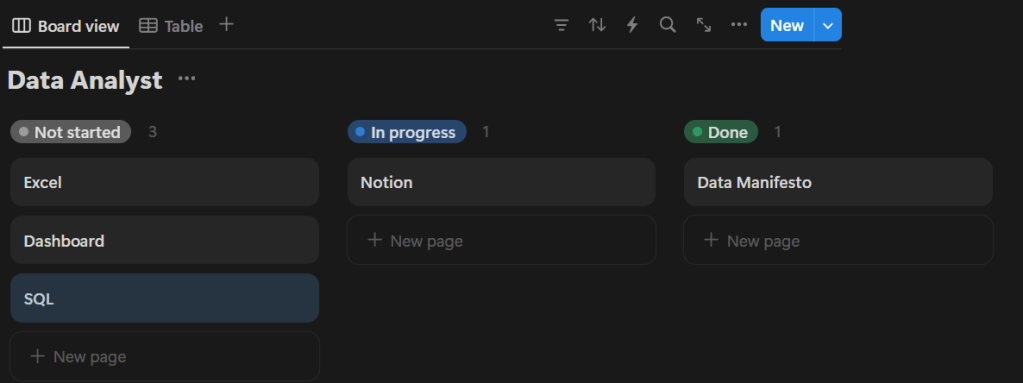
สามารถ create board view ได้ว่าวิชาไหนเรียนแล้วหรือยังไม่เรียน
- Data Manifesto เรียนเสร็จแล้ว (Done)
- Notion กำลังเรียน (In Progress)
- Excel, SQL, Dashboard ยังไม่เรียน (Not Started)
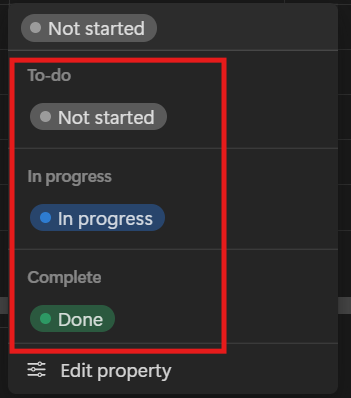
Table View

Click Status แล้วสามารถเลือก status 3 อันนี้ได้เลย ตามรูปด้านล่าง
Board View
- สามารถนำ mouse ดึงแล้วลากสลับทั้ง 3 status ได้เลย
Create Icon
Click Add Icon —> to create Icon

Create cover
Click Add Cover —> to create Cover

| Type | Definition |
| Gallery | รูปที่ notion มีให้เลือก |
| Upload | upload จาก com ตัวเอง |
| Link | นำมาจาก link internet |
| Unsplash | รูปจาก unsplash |
Good picture from this website : https://unsplash.com/
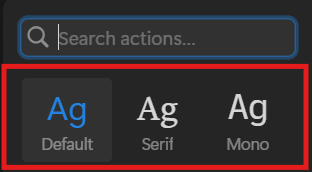
Change Font
Click 3 dot Top right corner change font
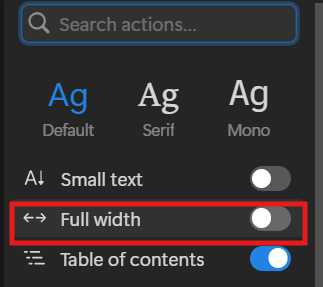
Change Full width
Click 3 dot Top right corner change full width (เต็มหน้าจอ)
Add two column
click / —> 2 column

- เวลาใช้คำสั่งนี้ใน notion จะแบ่งเป็น 2 column
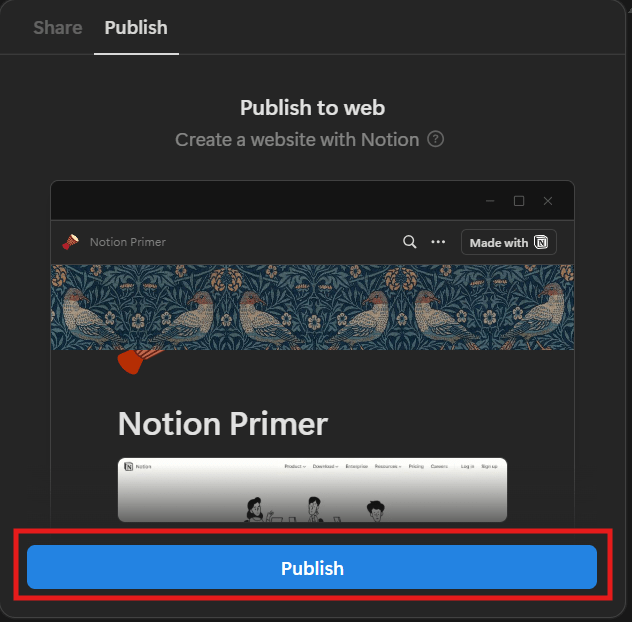
Share publish
- Click Share
- Then click publish
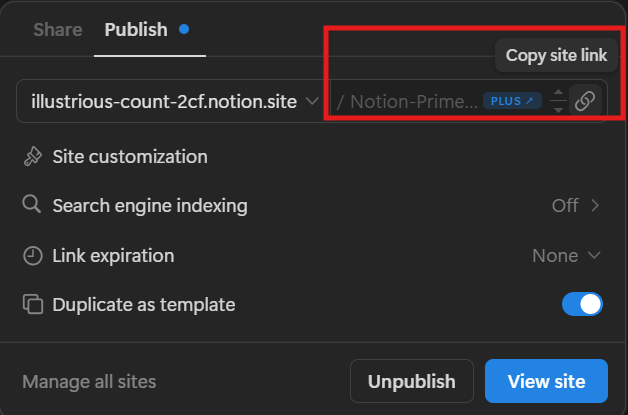
- Then copy link to send to another
Access
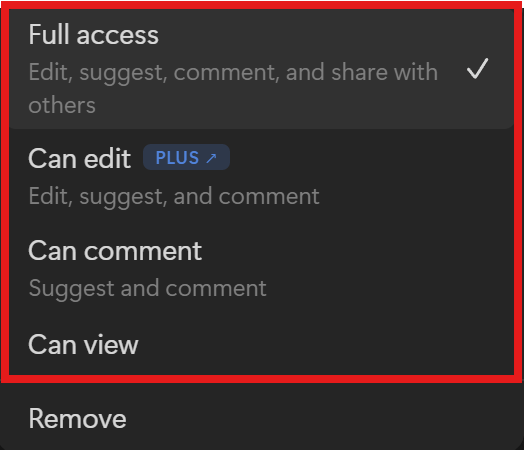
| Access | Definition |
| Full access | เข้าถึงทั้งหมด |
| Can edit | แก้ไขได้ |
| Can comment | แสดงความคิดเห็นได้ |
| Can view | ดูได้อย่างเดียว |
Database
- อยากเก็บข้อมูลนักเรียนใน notion —> เลือก / —> database inline
- สามารถเพิ่มชื่อใน database ได้
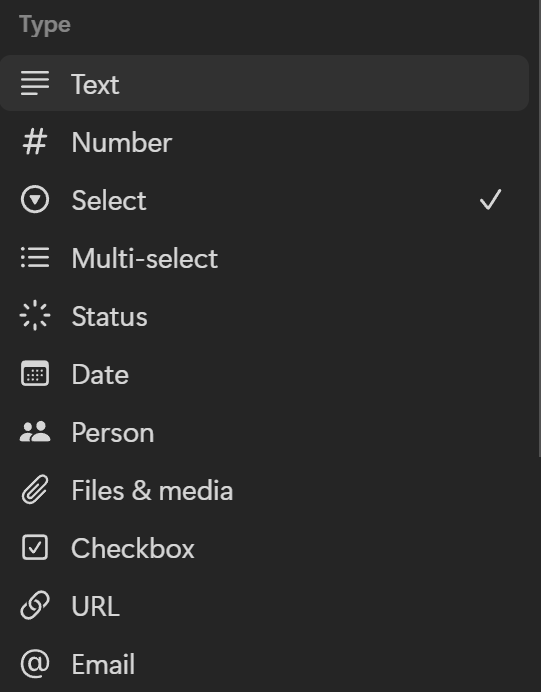
Edit Property
สามารถ edit property เลือกประเภทได้ ตามนี้
Connect Relationship
- Click relation to connect with 2 table

| Table | Definition |
| Student | Name Student ถูกเชื่อมไปที่ Course Table ที่ highlight red |
| Course | Name Course ถูกเชื่อมไปที่ Student Table ที่ highlight yellow |
- then table will connect 2 table
- ดูจาก highlight สีแดงจะเห็นว่า 2 ตารางนี้สามารถเชื่อมต่อกันได้แล้ว
Roll up
- สามารถใช้ Roll up ในการช่วยนับราคาตาราง database ได้ด้วย
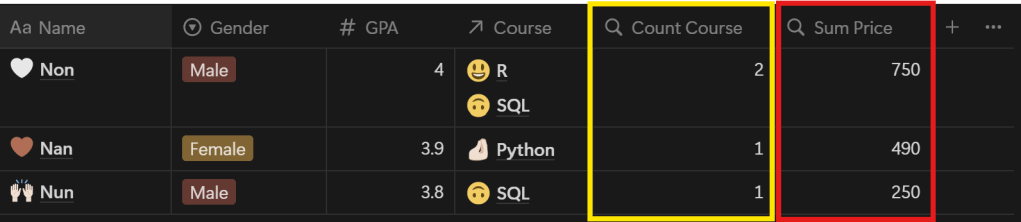
- หากต้องการให้ notion ช่วยคำนวณ Type Rollup แล้วส่ง Database จาก Course table เป็นคำนวณได้ที่ Student Table เพื่อคำนวณค่า Course เรียนดังรูป
- สามารถเลือก Count Course กับ Sum Price ได้ดังรูปด้านล่าง
Count Course
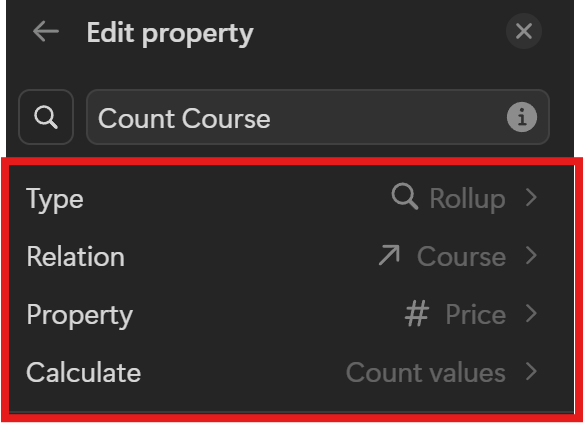
Sum Price

Restore data
- สามารถ restore หน้าเพจที่ต้องการกลับมาจาก ถังขยะได้
—> Private —> Trash —>เลือกหน้าเพจที่ต้องการ restore กลับมาคืนมาได้
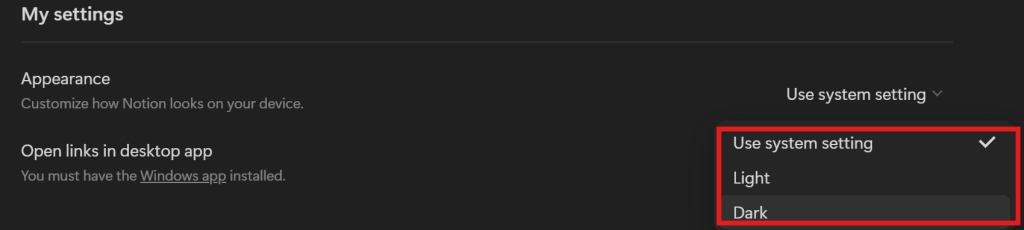
Choose light or dark mode in notion
—> Private —Setting —> Appearance —> สามารถเลือก Theme ของ notion ได้ดังรูป
Export File
- Can export notion file when click this button with PDF and Excel File
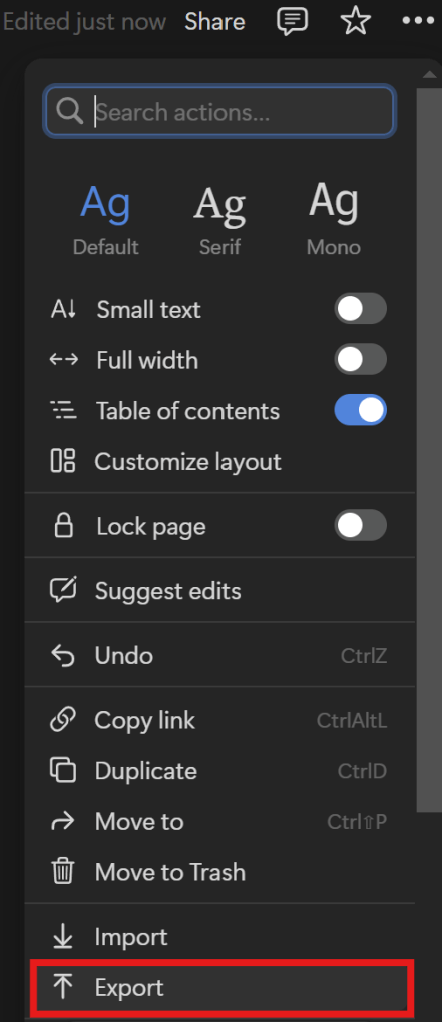
- หากเห็นว่า notion อันไหนถูกใจสามารถ save เก็บไว้เป็น pdf ได้
- หากหน้าไหนเป็น sub-page สามารถคลิกเปิด page ได้ แต่เป็น version เสียเงิน
Video Upload
- สามารถใส่ video ของคลิปเรียนนี้จาก youtube ได้เลย
Mention Friend Name
- สามารถคลิก @ เพื่อ tag ชื่อเพื่อนได้
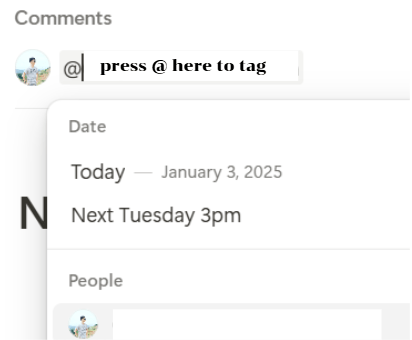
- กดแบบนี้สามารถ tag ชื่อใครที่ได้รับอนุญาตให้อยู่ใน notion ของเราได้
Reminder
- Notion สามารถกด reminder เลือก “วันที่”
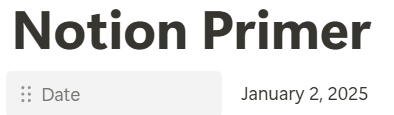
- หลังจากนั้นก็สามารถเลือกเวลาที่จะแจ้งเตือนได้ตามรูป

เวลาเป็นสิ่งมีค่า และการจดบันทึกสิ่งที่ต้องทำและบันทึกความทรงจำต่างๆ เป็นวิธีที่ดีในการใช้เวลาอย่างมีประสิทธิภาพและเก็บรักษาความทรงจำเหล่านั้น Notion เป็นแอปพลิเคชันที่ได้รับความนิยมอย่างมากเพราะมีความยืดหยุ่นและฟังก์ชันหลากหลาย เหมาะกับการใช้งานทั้งบนมือถือและคอมพิวเตอร์
หวังว่าบทความนี้จะมีประโยชน์กับทุกท่านที่รับชมครับ
youtube ฉบับเต็มสามารถดูผ่านเพจ : DataRockie Channel ✅✅✅
 Chayanonboo