Category: Project

  • 10 Topics of Data analysis of the UCI Machine Learning Repository’s Online Retail dataset using R

    10 Topics of Data analysis of the UCI Machine Learning Repository’s Online Retail dataset using R

    เป็นบทความสำหรับการวิเคราะห์ข้อมูลโดยโปรแกรม R เพื่อที่จะหากลุ่มลูกค้าที่จะเก็บข้อมูลมาว่าลูกค้ากลุ่มไหน ควรออกแบบ Campaign อะไรที่จะสามารถตอบโจทย์และบอกได้ว่าลูกค้ากลุ่มไหนควรแนะนำให้เพิ่มบริการหรือลดบริการ

    เนื่องจากปัจจุบันการสูญเสียลูกค้ากันเยอะขึ้น ในหลายๆ รูปแบบจึงอยากหาสาเหตุว่าลูกค้ากลุ่มไหนควรที่จะทำ Campaign อะไรให้เพื่อฟื้นฟูความสัมพันธ์กับลูกค้าเหล่านั้น โดยการสร้าง RFM Feature Engineering ขึ้นมาจากข้อมูลที่มี

    RFM Feature Engineering คือมันคือการแปลงประวัติการซื้อของลูกค้า (ที่เป็นข้อมูลดิบ) ให้กลายเป็น 3 คำดังนี้ Recency, Frequency and Monetary เพื่อนำไปใช้สำหรับการวิเคราะห์การตลาด จากข้อมูลดิบของการซื้อขายครับ คือ การเปลี่ยนข้อมูล Transaction ที่เข้าใจยาก ให้กลายเป็น 3 คอลัมน์ใหม่ที่เข้าใจง่าย เพื่อใช้วิเคราะห์พฤติกรรมลูกค้าครับ

    โดย 3 Features ที่เราสร้างขึ้นมานั้นย่อมาจาก:

    1. R = Recency (ความสดใหม่): ลูกค้าซื้อครั้งล่าสุดเมื่อไหร่? (เช่น 10 วันที่แล้ว)
    2. F = Frequency (ความถี่): ลูกค้าซื้อบ่อยแค่ไหน? (เช่น 5 ครั้ง)
    3. M = Monetary (มูลค่าการใช้จ่าย): ลูกค้าใช้เงินไปทั้งหมดเท่าไหร่? (เช่น 8,000 บาท)

    Data Analyst with R

    1. Install Library
      1. Install readxl
      2. Install tidyverse
    2. Read data
      1. Read excel
      2. Head data
      3. Glimpse
    3. Definition of Column
      1. InvoiceNo
      2. StockCode
      3. Description
      4. Quantity
      5. InvoiceDate
      6. UnitPrice
      7. CustomerID
      8. Country
    4. Data Cleaning
      1. Clean missing CustomerID value
      2. Cancel transaction that have C before Invoice NO.
      3. Manage Quantity and UnitPrice
      4. Create Column TotalPrice
      5. Change InvoiceDate into Date/time
      6. Summary Data
    5. Create RFM Feature Engineering
      1. Snapshot Date
      2. calculate RFM
    6. K-Means (Customer Segmentation)
      1. K-Means
      2. Prepare Data for K-Means (choose specific column R, F, M)
      3. Manage with Outlier
      4. Standardize
      5. Elbow method
        1. WSS
      6. Create dataframe for plot graph and plot graph with ggplot
      7. K-Means clustering
    7. Segment Profiling
      1. Calculate average of R, F, M with Cluster
    8. Storytelling and Visualization
      1. Analyst from four cluster
        1. Cluster 1
        2. Cluster 2
        3. Cluster 3
        4. Cluster 4
    9. Recommended Campaign
    10. Export Data for search cluster in excel

    Install Library

    ก่อนที่จะเริ่มต้นวิเคราะห์ข้อมูล ก็เริ่มต้นด้วยการ Download Library เพื่อที่จะสามารถใช้ Function ต่างๆได้หลากหลายขึ้น เช่น tidyverse และ readxl ก่อน


    Install readxl

    • install.packages(“readxl”) download มาเพื่อสามารถอ่านข้อมูลจากไฟล์ Excel ได้
    • library(readxl)
    install.packages("readxl")
    library(readxl)
    

    Install tidyverse

    • install.packages(“tidyverse”) Download มาเพื่อสามารถวิเคราะห์ข้อมูลทั้งหมดได้ ไม่ว่าจะ dplyr และ ggplot
    • library(tidyverse)
    install.packages("tidyverse")
    library(tidyverse)
    
    • หลังจาก run code จะสามารถดึงอุปกรณ์ในการช่วยวิเคราะห์ข้อมูลได้ตามรูปด้านล่าง
    install (tidyverse)

    Read data

    Read excel

    • สามารถอ่าน File Excel ชื่อ Online Retail.xlsx แล้วเลือก Sheet ที่ต้องการวิเคราะห์ข้อมูล ซึ่งก็คือ Sheet ที่ 1 ของไฟล์นี้
    ## read file from excel
    retail_data <- read_excel("Online Retail.xlsx", sheet = 1)
    View(retail_data)
    
    image.png
    read file from excel

    Head data

    • เลือก head มาเพื่อที่จะดูข้อมูล Column ของมีข้อมูลแถวบนเป็นยังไงบ้าง
    ## show head data
    print("Example:")
    print(head(retail_data))
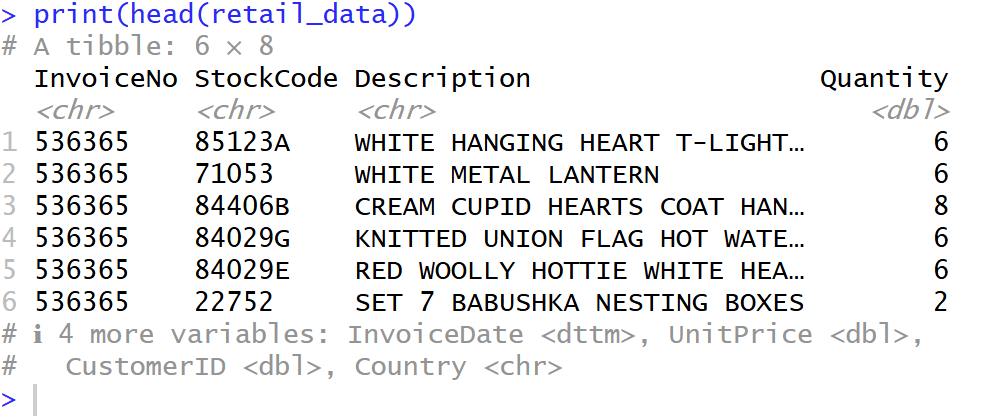
    
    head data

    Glimpse

    glimpse จะแสดงโครงสร้างข้อมูลของ data frame จะสามารถรู้ได้ว่ามีคอลัมน์อะไรบ้าง, แต่ละคอลัมน์มีชนิดข้อมูล (Data Type) อะไร, และมีข้อมูลตัวอย่างหน้าตาเป็นอย่างไร ดังรูป

    ## show data structure
    print("data structure:")
    glimpse(retail_data)
    
    Glimpse

    Definition of Column

    เราเริ่มจากการดูข้อมูลเบื้องต้นก่อนว่า แต่ละ Column คืออะไรบ้าง


    InvoiceNo

    • InvoiceNo คือ (เลขที่ใบแจ้งหนี้)
    • เป็นรหัสที่ใช้ “จัดกลุ่ม” สินค้าที่ถูกซื้อในธุรกรรม (Transaction) เดียวกัน
    • จากตัวอย่าง InvoiceNo “536365” มีหลายแถว หมายความว่า ลูกค้าคนนี้สั่งสินค้าหลายอย่างในใบเสร็จใบเดียวกัน

    StockCode

    • StockCode คือ รหัสสินค้า
    • รหัสเฉพาะของสินค้าแต่ละชิ้น (คล้ายกับ SKU)

    Description

    • Description คือ รายละเอียดสินค้า
    • ชื่อหรือคำอธิบายของสินค้า (เช่น “WHITE HANGING HEART T-LIGHT HOLDER”)

    Quantity

    • Quantity คือ จำนวนสินค้า
    • จำนวนสินค้า ชิ้นนั้น ที่ถูกสั่งซื้อในใบเสร็จนี้
    • ข้อควรระวัง: ในข้อมูลชุดนี้ บางครั้งค่า Quantity อาจ ติดลบ ซึ่งหมายถึงการยกเลิก (Cancellation) หรือการคืนสินค้า (Return)

    InvoiceDate

    • InvoiceDate คือ วันที่สั่งซื้อ
    • วันที่และเวลาที่ธุรกรรมนั้นเกิดขึ้น (เช่น 2010-12-01 08:26:00)

    UnitPrice

    • UnitPrice คือ ราคาต่อหน่วย
    • ราคาของสินค้าชิ้นนั้น 1 หน่วย (เช่น 2.55)

    CustomerID

    • CustomerID คือ รหัสลูกค้า
    • รหัสประจำตัวของลูกค้าที่ทำการสั่งซื้อ (เช่น 17850)
    • ข้อควรระวัง: ในข้อมูลชุดนี้ บางแถวอาจไม่มี CustomerID (เป็นค่าว่าง หรือ NA) ซึ่งหมายถึงการซื้อแบบที่ไม่ได้ล็อกอิน (Guest)

    Country

    • Country คือ ประเทศ
    • ประเทศที่ลูกค้าคนนั้นอาศัยอยู่

    Data Cleaning

    Clean missing CustomerID value

    • หลังจากสำรวจข้อมูลแล้วเห็นว่าข้อมูล CustomerID บาง Column ข้อมูลไม่ครบ จึงทำลบแถวที่ข้อมูลไม่ครบของ CustomerID จาก Rows 541,909 เหลือ 406,829 = 133,820 Rows
    • ใช้ Code นี้เพื่อที่จะสามารถข้อมูลที่ยังไม่สมบูรณ์ เช่น ที่ Column Customer ID ออกโดยใช้ filter(!is.na(CustomerID)) คือ ใช้ column CustomerID ‘ไม่’ ( ! ) ‘เป็นค่าว่าง’ ( is.na )”
    ## Clean missing data
    retail_data_cleaned <- retail_data %>%
      filter(!is.na(CustomerID))
    glimpse(retail_data_cleaned)
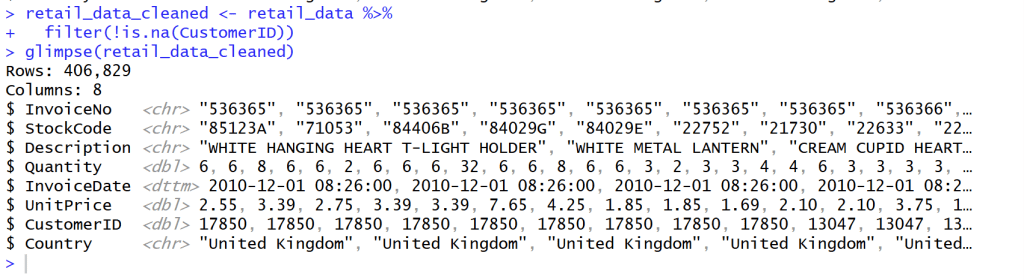
    
    Clean missing data

    Cancel transaction that have C before Invoice NO.

    • หลังจากสำรวจข้อมูลใน Column Invoice NO. แล้วพบว่า Column ที่ Invoice NO. ถูก Cancel จะมีตัว C อยู่ข้างหน้า Invoice เหล่านั้น
    • เราจึงต้องกรอง Invoice ที่ขึ้นต้นด้วย C และ c ออกไปเพื่อเหลือแค่ลูกค้าที่สั่ง Order กับเราจริงๆ โดยไม่ยกเลิก Order
    ## Cancel transaction that have C before Invoice NO.
    retail_data_cleaned <- retail_data_cleaned %>%
      filter(!startsWith(as.character(InvoiceNo), "C") & !startsWith(as.character(InvoiceNo), "c"))
    glimpse(retail_data_cleaned)
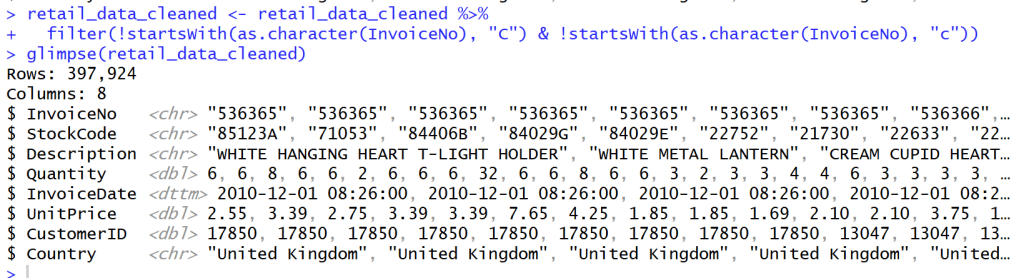
    
    Cancel transaction that have C before Invoice NO.

    Manage Quantity and UnitPrice

    • กรองค่าที่ Quantity และ UnitPrice ที่น้อยกว่า 0 ออกเพื่อให้ข้อมูลถูกต้อง
    ## manage Quantity and UnitPrice
    retail_data_cleaned <- retail_data_cleaned %>%
      filter(Quantity > 0 & UnitPrice > 0)
    glimpse(retail_data_cleaned)
    
    Manage Quantity and UnitPrice

    Create Column TotalPrice

    • เพิ่ม Column TotalPrice เพื่อคำนวณราคาของ Quantity * Unitprice จะได้รู้ปริมาณ * ราคาของสินค้าทั้งแถว
    • แล้วจะมี Column ชื่อ Total Price ตามรูปด้านล่าง
    ## Create Column Totalprice
    retail_data_cleaned <- retail_data_cleaned %>%
      mutate(TotalPrice = Quantity * UnitPrice)
    retail_data_cleaned
    glimpse(retail_data_cleaned)
    
    Create Column TotalPrice

    Change InvoiceDate into Date/time

    • เปลี่ยนวันที่ในข้อมูลให้กลายเป็นวันที่สามารถบอกเวลาได้ ให้เป็นรูปแบบเดียวกัน
    ## Change InvoiceDate into Date/time
    retail_data_cleaned <- retail_data_cleaned %>%
      mutate(InvoiceDate = ymd_hms(InvoiceDate))
    glimpse(retail_data_cleaned)
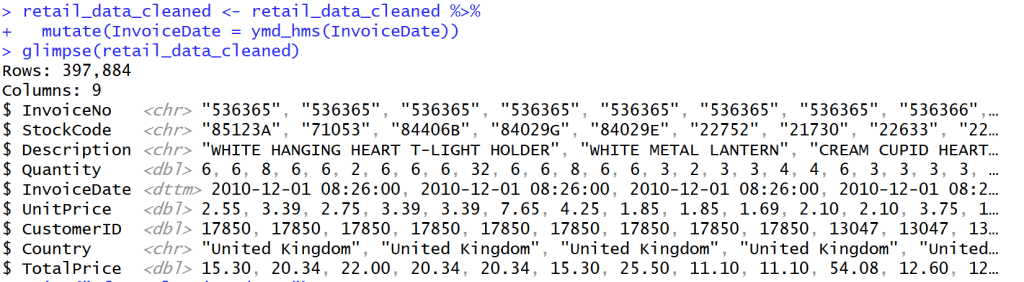
    
    Change InvoiceDate into Date/time

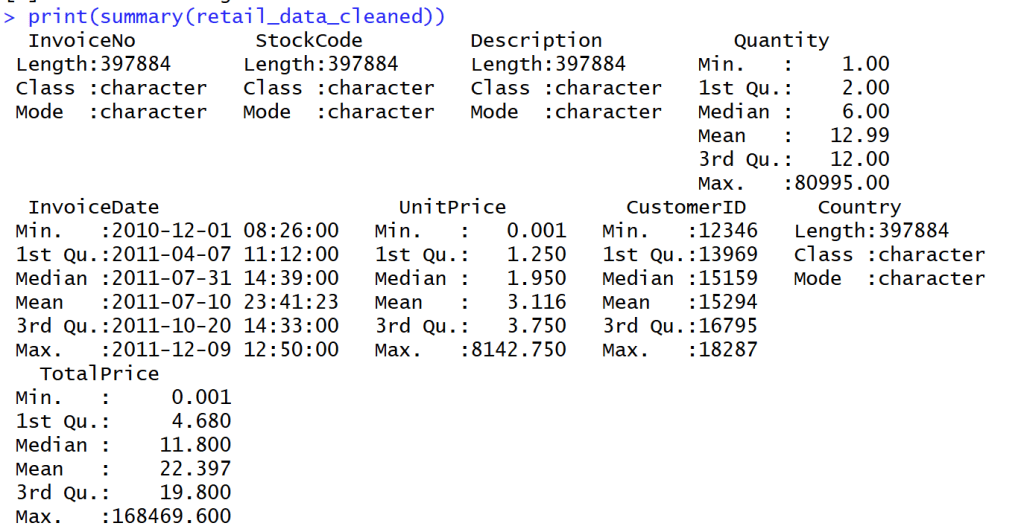
    Summary Data

    • สรุปข้อมูลออกมาได้ดังนี้
    • Summary ได้เฉพาะ Column ที่เป็นปริมาณ
    Summary Data

    Create RFM Feature Engineering

    Snapshot Date

    • หาวันที่ max ที่สุดของ data นี้ด้วยตัวแปร Snapshot
    ## snapshot Date
    ## use next date for last day from data
    snapshot_date <- max(retail_data_cleaned$InvoiceDate) + days(1)
    snapshot_date
    
    Snapshot Date

    calculate RFM

    • สร้างแถว Recency, Frequency and Monetary

    เพื่อจะได้รับตัวแปรช่วยให้รู้ได้ว่าลูกค้ากลุ่มไหนซื้อสินค้าเรา วันล่าสุดเท่าไร ความถี่เท่าไร และค่าใช้จ่ายเท่าไร

    1. Monetary (M): ยอดใช้จ่ายทั้งหมด
    2. Recency (R): จำนวนวันที่ผ่านไปนับจากการซื้อครั้งล่าสุด
    3. Frequency (F): จำนวนธุรกรรมทั้งหมด
    ## create new rfm_data with Recency, Frequency and Monetary
    rfm_data <- retail_data_cleaned %>%
      group_by(CustomerID) %>%
      summarise(
        Recency = as.numeric(difftime(snapshot_date, max(InvoiceDate), units = "days")),
        Frequency = n_distinct(InvoiceNo),
        Monetary = sum(TotalPrice)
      )
    print("Example RFM:")
    print(head(rfm_data))
    View(rfm_data)
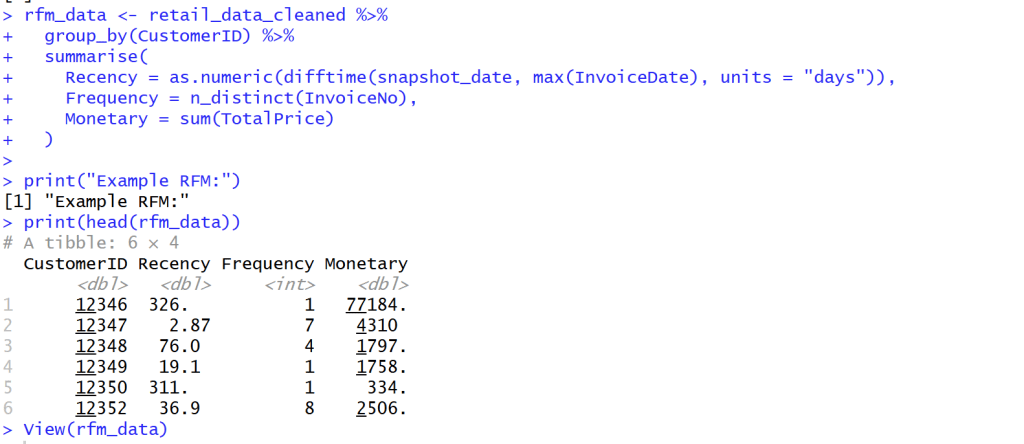
    
    calculate RFM

    K-Means (Customer Segmentation)

    K-Means

    K-Means คือการแบ่งฐานลูกค้าทั้งหมดของคุณออกเป็นกลุ่มย่อยๆ (Segments) โดยที่คนในกลุ่มเดียวกันจะมีพฤติกรรมหรือคุณลักษณะที่คล้ายกัน แต่จะแตกต่างจากคนในกลุ่มอื่นอย่างชัดเจน

    ตัวอย่างผลลัพธ์ที่คาดว่าจะได้รับมีดังนี้

    เมื่อใช้อัลกอริทึม K-Means (สมมติว่าเราตั้งค่า $K=4$) เราอาจจะได้กลุ่มลูกค้า 4 กลุ่ม เช่น:

    1. กลุ่มลูกค้าชั้นดี (High-Value): ซื้อบ่อย (F สูง), ยอดซื้อสูง (M สูง), และเพิ่งซื้อไปไม่นาน (R ต่ำ)
    2. กลุ่มลูกค้าที่กำลังจะหาย (At-Risk): เคยซื้อเยอะและบ่อย (F, M สูง) แต่ไม่กลับมาซื้อนานแล้ว (R สูง)
    3. กลุ่มลูกใหม่ (New Customers): เพิ่งซื้อครั้งแรก (F, M ต่ำ) และซื้อล่าสุด (R ต่ำ)
    4. กลุ่มลูกค้าทั่วไป (Standard): ซื้อประปราย ยอดซื้อปานกลาง

    Prepare Data for K-Means (choose specific column R, F, M)

    • เลือกเฉพาะ Column R, F และ M จาก ตัวแปร rfm_data มาอยู่ในตัวแปร rfm_for_clustering เพื่อที่จะสามารถศึกษาข้อมูลต่อได้
    ## Prepare data for K-Means (Choose specially R, F, M )
    rfm_for_clustering <- rfm_data %>%
      select(Recency, Frequency, Monetary)
    rfm_for_clustering
    View(rfm_for_clustering)
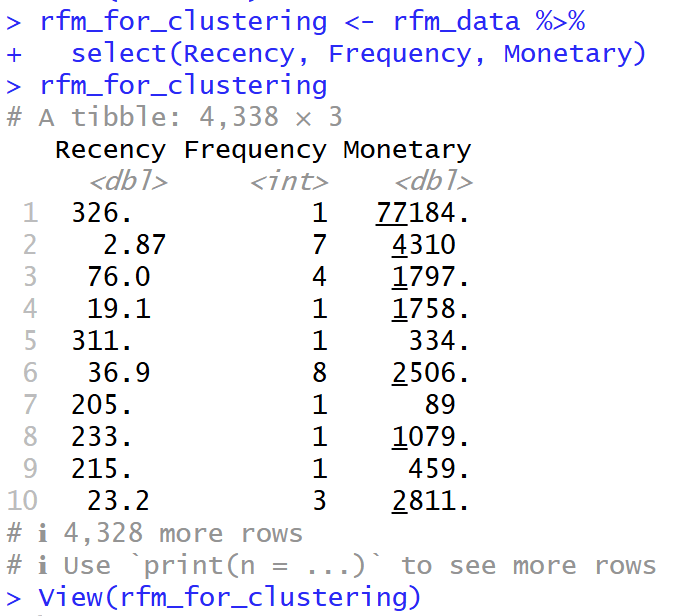
    
    choose specific column R, F, M

    Manage with Outlier

    • เนื่องจาก Frequency and Monetary มีการเบ้ขวาของข้อมูล จึงใส่ค่า log เพื่อลดการคลาดเคลื่อนของข้อมูล (Outlier)
    • การเบ้ขวาของข้อมูล คือ ข้อมูลส่วนใหญ่กระจุกตัวอยู่ที่ฝั่งค่าน้อยกว่า
    ## manage with Outliers 
    ## column Frequency and Monetary have right skewed
    ## Log Transformation to reduce Outlier
    rfm_log <- rfm_for_clustering %>%
      mutate(
        Recency_log = log(Recency + 1), # +1 เพื่อหลีกเลี่ยง log(0)
        Frequency_log = log(Frequency + 1),
        Monetary_log = log(Monetary + 1)
      ) %>%
      select(Recency_log, Frequency_log, Monetary_log)
    glimpse(rfm_log)
    
    Manage with Outlier

    Standardize

    • Scale( ) ใน R เป็นเครื่องมือที่สำคัญมากสำหรับการ “Standardization” หรือ “การปรับสเกลข้อมูล” ครับ
    1. Centering (การปรับศูนย์): มันจะนำค่าในคอลัมน์นั้นไป ลบด้วยค่าเฉลี่ย (Mean) ของคอลัมน์ ผลลัพธ์คือ คอลัมน์ใหม่นี้จะมี ค่าเฉลี่ย = 0
    2. Scaling (การปรับสเกล): จากนั้น มันจะนำค่าที่ถูก Centered แล้ว ไป หารด้วยส่วนเบี่ยงเบนมาตรฐาน (Standard Deviation – SD) ของคอลัมน์นั้น ผลลัพธ์คือ คอลัมน์ใหม่นี้จะมี Standard Deviation = 1
    ## Standardize
    ## make average to be 0 and S.e. to be 1
    rfm_scaled <- scale(rfm_log)
    print("Adapt with propotion:")
    print(head(rfm_scaled))
    
    View(rfm_scaled)
    
    Standardize

    Elbow method

    • Elbow Method คือเทคนิคที่นิยมใช้เพื่อช่วยตัดสินใจว่า “จำนวนกลุ่ม (K) ที่เหมาะสมที่สุด” ควรจะเป็นเท่าไหร่ สำหรับการทำ Clustering, โดยเฉพาะกับ K-Means
    ## Elbow method to find K that fit to data
    wss <- (nrow(rfm_scaled)-1) * sum(apply(rfm_scaled, 2, var))
    for (i in 2:10) { # ทดสอบ k ตั้งแต่ 2 ถึง 10
      wss[i] <- sum(kmeans(rfm_scaled, centers = i)$withinss)
    }
    wss

    

    WSS

    wss คือ มันคือการคำนวณว่าข้อมูลทั้งหมดในกลุ่มนั้นๆ อยู่ “กระจัดกระจาย” หรือ “เกาะกันแน่น” แค่ไหน โดยวัดจากจุดศูนย์กลาง (Centroid) ของกลุ่ม

    ค่า WSS ต่ำ = ดีมาก

    1. หมายความว่า จุดข้อมูลต่างๆ อยู่ “ใกล้” กับจุดศูนย์กลางของกลุ่มมันมาก
    2. แปลว่ากลุ่มนั้น “เกาะกันแน่น” (Dense) และมีความแปรปรวนภายในกลุ่มต่ำ

    ค่า WSS สูง = ไม่ดี

    1. หมายความว่า จุดข้อมูลต่างๆ อยู่ “ไกล” จากจุดศูนย์กลางกลุ่ม
    2. แปลว่ากลุ่มนั้น “กระจัดกระจาย” (Sparse) และมีความแปรปรวนภายในกลุ่มสูง
    ## Calculate Within-Cluster Sum of Squares (WSS)
    wss <- (nrow(rfm_scaled)-1) * sum(apply(rfm_scaled, 2, var))
    for (i in 2:10) { # ทดสอบ k ตั้งแต่ 2 ถึง 10
      wss[i] <- sum(kmeans(rfm_scaled, centers = i)$withinss)
    }
    wss
    
    WSS

    วิธีดู “Elbow method” คือการดูว่า WSS “ลดลง” ไปเท่าไหร่ในแต่ละก้าว และมองหาจุดที่ “อัตราการลดลง” มันเริ่มน้อยลง (กราฟเริ่มแบน)

    1. K=1 -> 2: ลดลง 13011.0 – 6472.9 = 6538.1 (ลดลงเยอะมาก)
    2. K=2 -> 3: ลดลง 6472.9 – 4855.5 = 1617.4 (ยังลดลงเยอะ)
    3. K=3 -> 4: ลดลง 4855.5 – 3923.4 = 932.1 (เริ่มลดน้อยลง อย่างชัดเจน)
    4. K=4 -> 5: ลดลง 3923.4 – 3267.4 = 656.0
    5. K=5 -> 6: ลดลง 3267.4 – 2840.2 = 427.2
    6. K=6 -> 7: ลดลง 2840.2 – 2533.5 = 306.7 (หลังจากนี้คือลดลงน้อยมาก)
    7. K=7 -> 8: ลดลง 2533.5 – 2330.2 = 203.3
    8. K=8 -> 9: ลดลง 2330.2 – 2162.1 = 168.1
    9. K=9 -> 10: ลดลง 2162.1 – 1997.5 = 164.6

    จึงใช้ k = 4

    K=3 -> 4: ลดลง 4855.5 – 3923.4 = 932.1 (เริ่มลดน้อยลง อย่างชัดเจน)


    Create dataframe for plot graph and plot graph with ggplot

    • สร้างกราฟเพื่อดูว่าข้อมูลไหนห่างกันน้อยที่เมื่อเทียบกับด้านคือ K = 4
    ## create dataframe for plot graph
    elbow_data <- data.frame(k = 1:10, wss = wss)
    
    ## plot graph with ggplot
    print(
      ggplot(elbow_data, aes(x = 4, y = wss)) +
        geom_line() +
        geom_point() +
        scale_x_continuous(breaks = 1:10) +
        labs(title = "Elbow Method for Optimal 4",
             x = "Amount (4)",
             y = "Within-Cluster Sum of Squares (WSS)")
    )
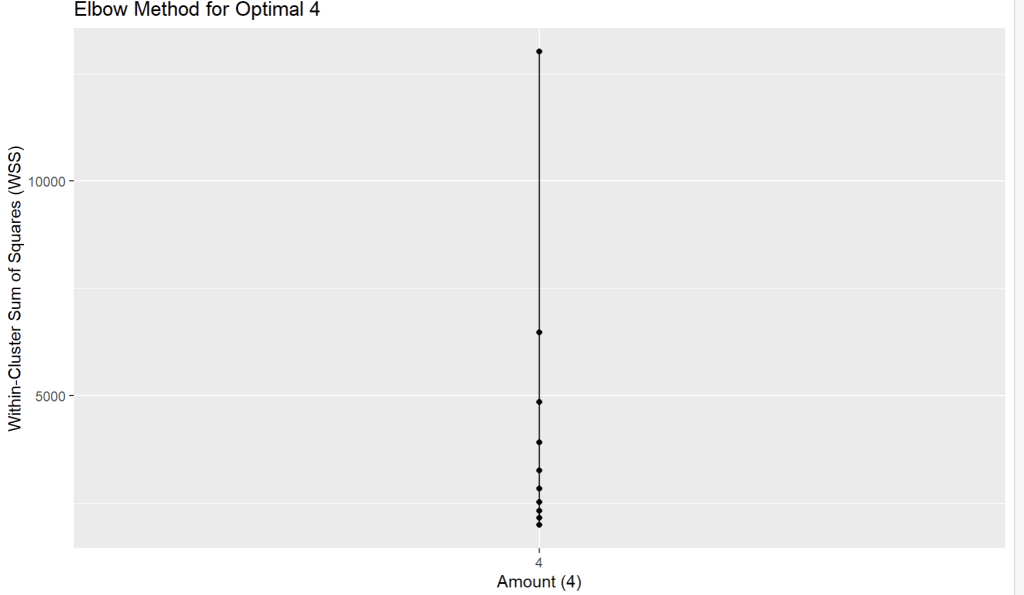
    
    graph with ggplot

    K-Means clustering

    ## K-Means clustering
    set.seed(42) # make result same
    k_optimal <- 4 
    kmeans_result <- kmeans(rfm_scaled, centers = k_optimal, nstart = 25)
    
    1. set.seed(42) เพื่อให้ข้อมูลคงค่าเดิมเสมอทุกครั้งที่ Run model
    2. centers = k_optimal: บอก K-Means ว่า “ให้แบ่งกลุ่มข้อมูลนี้ออกเป็น 4 กลุ่มนะ” (โดยอ้างอิงค่าจากตัวแปร k_optimal ที่เราตั้งไว้)
    3. nstart = 25: บอก K-Means ว่า “ให้ลองสุ่มจุดเริ่มต้น 25 ครั้ง แล้วเลือกเอาครั้งที่ได้ผลลัพธ์ดีที่สุด (คือได้ค่า WSS ต่ำที่สุด)” มาเป็นคำตอบสุดท้าย (ช่วยให้ได้ผลลัพธ์ที่ดีและเสถียรขึ้น)

    Segment Profiling

    Calculate average of R, F, M with Cluster

    • คำนวณค่าเฉลี่ยตามกลุ่ม Cluster เรียงตามค่าใช้จ่ายจากน้อยไปมาก
    ## Calculate average of R, F, M with Cluster
    segment_profile <- rfm_data %>%
      group_by(Cluster) %>%
      summarise(
        Avg_Recency = mean(Recency),
        Avg_Frequency = mean(Frequency),
        Avg_Monetary = mean(Monetary),
        Count = n() # Number of Customers
      ) %>%
      arrange(Avg_Monetary) # arrange with expense
    
    print("Profie seperate of group R, F, M:")
    print(segment_profile)
    

    Storytelling and Visualization

    1. Bar charts to compare average R, F, M of each segment
    ## Bar charts to compare average R, F, M of each segment
    
    segment_profile_long <- segment_profile %>%
      select(Cluster, Avg_Recency, Avg_Frequency, Avg_Monetary) %>%
      gather(key = "Metric", value = "Value", -Cluster)
    
    print(
      ggplot(segment_profile_long, aes(x = Cluster, y = Value, fill = Metric)) +
        geom_bar(stat = "identity", position = "dodge") +
        facet_wrap(~ Metric, scales = "free_y") +
        labs(title = "Segment Profiles (Average RFM Values)",
             x = "Cluster",
             y = "Average Value") +
        theme_minimal()
    )
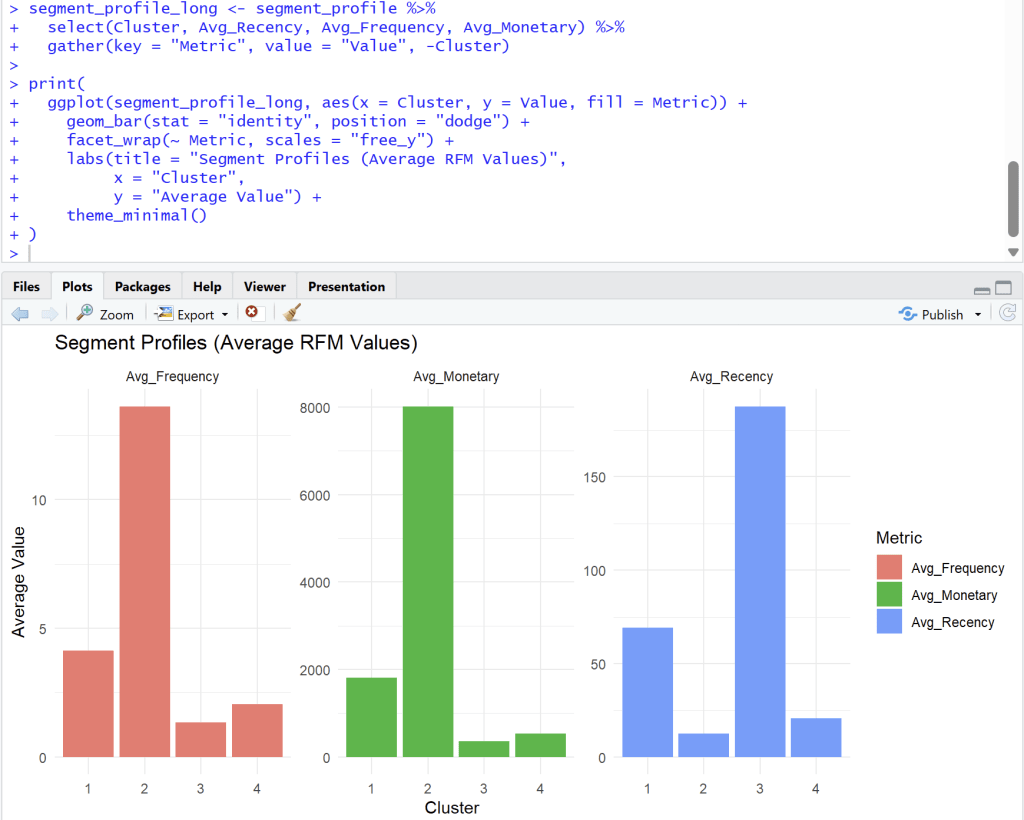
    
    R, F, M of each segment

    Analyst from four cluster

    Cluster 1

    Cluster 1: ลูกค้าทั่วไป (กำลังจะห่าง)

    1. Frequency (ความถี่): ปานกลาง (Avg. ~4)
    2. Monetary (ยอดใช้จ่าย): ปานกลาง (Avg. ~1900)
    3. Recency (ซื้อล่าสุด): ค่อนข้างนาน (Avg. ~70 วัน)
    4. สรุป: กลุ่มนี้เคยซื้อค่อนข้างดี แต่เริ่มหายไปนานแล้ว (70 วัน) อาจต้องการการกระตุ้นเตือนให้กลับมา

    Cluster 2

    Cluster 2: 🏆 ลูกค้าชั้นดี (Best Customers / VIP)

    1. Frequency (ความถี่): สูงที่สุด (Avg. ~14)
    2. Monetary (ยอดใช้จ่าย): สูงที่สุด (Avg. ~8000)
    3. Recency (ซื้อล่าสุด): ต่ำที่สุด (Avg. ~10 วัน)
    4. สรุป: นี่คือกลุ่มที่ดีที่สุดของคุณ ซื้อบ่อย, จ่ายหนัก, และเพิ่งซื้อไปไม่นาน กลุ่มนี้คือกลุ่มที่ต้องรักษาไว้ให้ดีที่สุด (Loyalty Program, สิทธิพิเศษ)

    Cluster 3

    Cluster 3: 😥 ลูกค้าที่หายไปแล้ว (Lost Customers)

    1. Frequency (ความถี่): ต่ำ (Avg. ~1.5)
    2. Monetary (ยอดใช้จ่าย): ต่ำที่สุด (Avg. ~300)
    3. Recency (ซื้อล่าสุด): สูงที่สุด (Avg. ~180 วัน)
    4. สรุป: กลุ่มนี้ซื้อน้อย จ่ายน้อย และที่สำคัญคือ ไม่กลับมาซื้อนานมากแล้ว (เกือบ 180 วัน) การดึงลูกค้ากลุ่มนี้กลับมาอาจต้องใช้โปรโมชั่นที่แรงมาก (Win-back campaign)

    Cluster 4

    Cluster 4: ✨ ลูกค้าใหม่ (New Customers)

    1. Frequency (ความถี่): ต่ำ (Avg. ~2)
    2. Monetary (ยอดใช้จ่าย): ต่ำ (Avg. ~600)
    3. Recency (ซื้อล่าสุด): ต่ำ (Avg. ~20 วัน)
    4. สรุป: กลุ่มนี้เพิ่งเข้ามาซื้อได้ไม่นาน (Recency ต่ำ) แต่ยังซื้อไม่บ่อยและยังจ่ายไม่เยอะ (F, M ต่ำ) เป้าหมายคือต้องกระตุ้น (Nurture) ให้พวกเขากลายเป็น Cluster 2 ในอนาคต

    Recommended Campaign

    ClusterSegmentจำนวนลูกค้ากลยุทธ์ที่แนะนำ
    1At-Risk1158ดึงกลับ ส่งแคปเปญ We miss you
    2Champions723รักษา มอบรางวัล loyalty ให้สิทธิ์ VIP
    3Lost1579ไม่ต้องโฟกัส
    4Potential878พัฒนา กระตุ้นการซื้อถัดไป

    Export Data for search cluster in excel

    install.packages("writexl")
    library(writexl)
    write_xlsx(rfm_data, "rfm_data_export.xlsx")
    
    • install package write excel เพื่อที่จะสามารถนำไปดูต่อใน Excel ได้ว่า Customer ID ควรสร้าง Campaign อะไร
    • Loyalty for VIP, We miss you สำหรับลูกค้าที่จะหายไป, Potential ที่พัฒนาการกระตุ้นซื้อครั้งถัดไป, Lost ไม่ต้องโฟกัสเยอะ แล้วให้ไปโฟกัสลูกค้ากลุ่มอื่นๆ

    Github :

    ดูตัวอย่าง code ทั้งหมดได้ที่ https://github.com/Chayanonboo/code-for-articles/blob/main/code_R/Online_Retail_Data_Set_from_UCI_ML_repo30_10_2025.ipynb

    Reference :

    https://www.kaggle.com/datasets/jihyeseo/online-retail-data-set-from-uci-ml-repo


  • 10 Method for Power BI to build your reports and dashboard

    10 Method for Power BI to build your reports and dashboard

    This project explores the use of Power BI to create dashboards that provide insights for improved business planning and decision-making within organizations. It also demonstrates how structured data can be presented in a clear and accessible manner through data storytelling.


    Table of Content

    1. References, Resources & Files
      1. Data Files
      2. Practice Files
    2. Navigate the power BI interface and import data
      1. Learning Objective
      2. Your Role : Data Analyst
      3. Start Power BI
    3. Transform data using Power Query
      1. Transform data process
      2. Remove column “Rush Shipment”
      3. Replace Value
    4. Insert and format a visualization
      1. Visual
      2. General
    5. Practice Data Visualization in Power BI
      1. Relationship
    6. Add more visuals to enhance storytelling
      1. Card Chart
      2. Table
    7. Publish the report to the Power BI workspace
    8. Cumulative Activity Scenario
      1. Products
      2. Inventory
    9. Create Sales reports
      1. Full Sale Report
    10. Create management reports
      1. Full Management Reports

    References, Resources & Files

    This project contains the following three files:

    Data Files

    • This is an Excel file containing cookie shipping data that use to create reports have 2 sheets.
    • Sheet 1, named “Orders” shows the following data.
    1. Order ID : The cookie shipping process based on each order.
    2. Customer ID : The order of 5 customer IDs connected to the “Customers” sheet.
    3. Rush Shipment : These shipments send express or regular.
    4. Cookies Shipped : These are cookies that have been shipped to customers.
    5. Revenue : Revenue from cookie sales
    6. Cost : Costs of cookie sales
    7. Order date : The date of shipment
    • Sheet 2, named “Customers” shows details of customers who purchased products through 5 specific customers.
    1. Customer ID : Ordering of 5 customers with ID numbers linked to the “Order” sheet.
    2. Customer name : Show the information of the shipping company.
    3. Phone : The company phone number.
    4. Address : The company address
    5. City : City name
    6. State : State name
    7. Zip : Zip Number
    8. Country : Country of shipment

    The data files contain raw, uncleaned data.


    Practice Files

    • A dataset of chocolate product information for a company that use to create reports have 2 sheets.
    • Sheet 1, named “Orders” contains the following data:
    1. Order ID :The chocolate chip product distribution process based on orders.
    2. Order_date : The chocolate chip product shipping dates by order.
    3. Retail_number : List of retailers connected to the “Retailers” sheet.
    4. Quantity : The quantity of the product.
    5. Unit Price : Price per unit.
    6. Total Amount : Quantity * Unit Price
    7. Product : Chocolate Chip
    • Sheet 2, named ‘Retailer_Names‘, shows the following data:”
    1. ID : list of retailers linked to the ‘Orders’ sheet“.
    2. Retailer_Name : The name of the retail company
    3. Country : The countries of shipment

    The practice files contain raw, uncleaned data.


    Final Files

    • This data file is for Emma’s coffee shop capstone task that use to create reports have 5 sheets.
    • Sheet 1, named “Orders” contains the following data:
    1. Order ID : Show the order list of Coffee shop
    2. Customer ID :Show the customer sequence connected to the ‘Customer ID’ sheet.
    3. Product ID : Show the product sequence linked to the ‘Customer ID’ sheet.
    4. Quantity : The quantity of coffee.
    5. Unit Price : The price of coffee per unit.
    6. Order date : The date of the coffee sale.
    • Sheet 2, named “Feedback” displays the following data:
    1. Feedback ID : Order of displaying customer feedback and suggestions.
    2. Customer ID : Show the customer order based on the “Orders” sheet.
    3. Rating : Coffee Rating
    4. Feedback : Text displaying customer feedback.
    5. Feedback date : Date of coffee shop reviews.
    • Sheet 3, named “Inventory” displays the following data:
    1. Product ID : Show the product sequence from the “Orders” sheet.
    2. Stock Level : Stock levels of coffee
    3. Reorder Level : The stock level at which a new order should be placed.
    4. Supplier : Who buys products for another person.
    • Sheet 4, named “Customers ID” displays the following data:
    1. Customer ID : Show the customer list connected to the “Orders” sheet.
    2. Customer Name : Customer’s name of Coffee Shop.
    3. Email : Email of customer’s Coffee Shop.
    • Sheet 5, named “Product ID” displays the following data:
    1. Product ID : Show the product list connected to the “Orders” sheet.
    2. Product Name : Name of product in Coffee shop.
    3. Category : Category of product in Coffee shop.
    4. Price : Price of product in Coffee shop.

    • Understand the basics of spreadsheets.
    • Familiarity with data cleaning and IF/SUM functions in spreadsheets is required.
    • The Microsoft account used to publish reports to Power BI.

    Learning Objective

    • Explore additional Power BI features like filtering publishing and graphs customization.
    • Build report with visualizations
    • Manage data relations and transform data with power Query

    you could build a data model and start to build some visuals and add some filters to our data. Then, we’ll look on how to add a theme and share your report and dashboards with others.


    Your Role : Data Analyst

    You are a Data Analyst for Cookie Bliss, your mission is to create a Power BI report to help visualize key metrics more effienctly and then publish the dashboard to share it with your teammates, providing them with sales insights for better decision-making


    Start Power BI

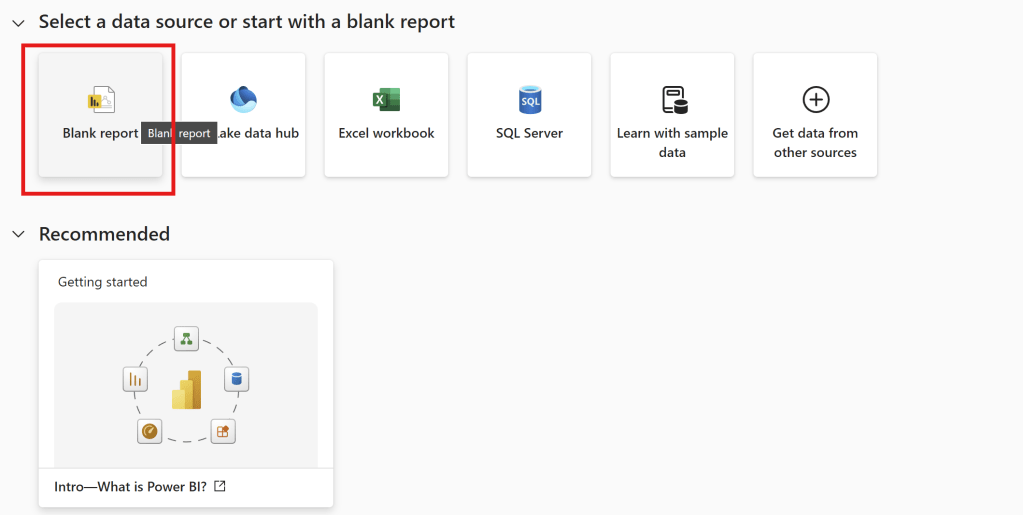
    • Then, open Power BI.
    Blank Report
    • Then, Choose Blank Report
    Visualizations Pane

    The side column of this table highlighted in red above the picture has four rows call “Visualizations Pane“.

    Visualizations Pane TypeDefinition
    Report ViewThe Dashboard Report
    Table ViewDataset Details
    Model ViewData Relationship Model
    DAX Query ViewDAX Query Editor
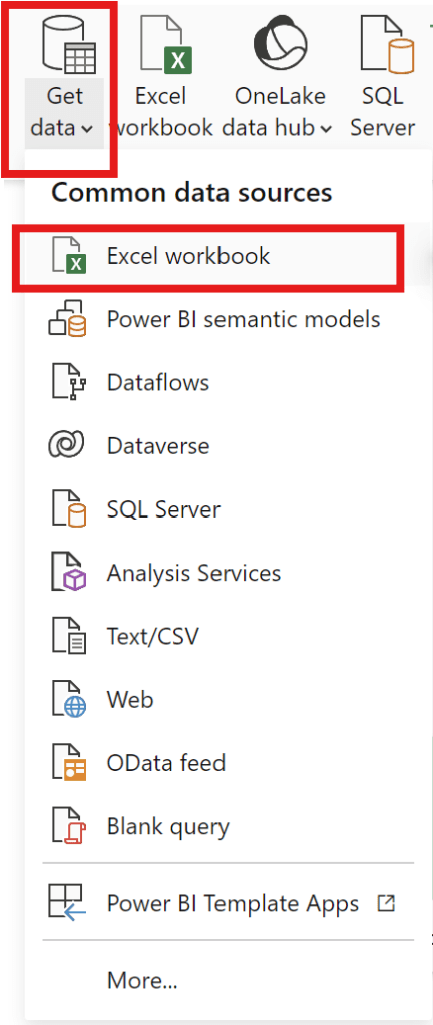
    • To create a dashboard, data must be selected.

    Get Data –>Excel Workbook –>Select the file you want to use to create a dashboard.

    Get Data

    start from export file “data

    • and can add data can be exported from various common data sources.
    • –> Choose file “data
    • –> Choose Customer2 table and Order1 table then click load.
    Load Data

    Transform data using Power Query

    how to transform data before starting to build our report.

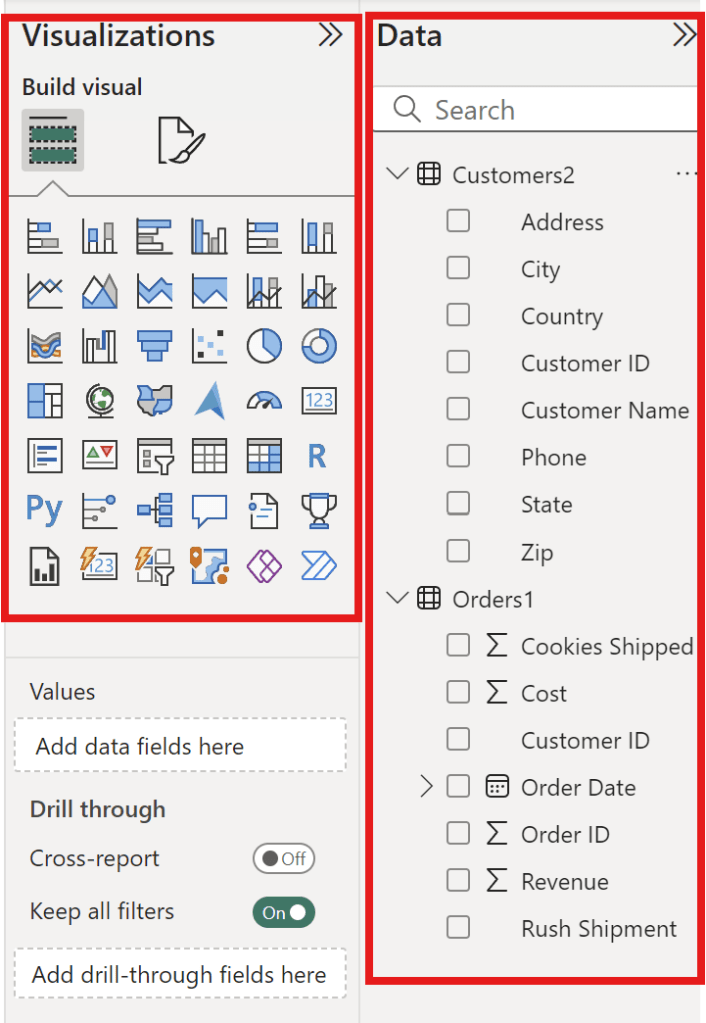
    • can check the Data and Visualization areas.
    Check Data and Visualization Zone
    • Picture above show the Data and Visualization areas to see how each data element should be displayed.

    Transform data process

    Let’s start in the Table view.

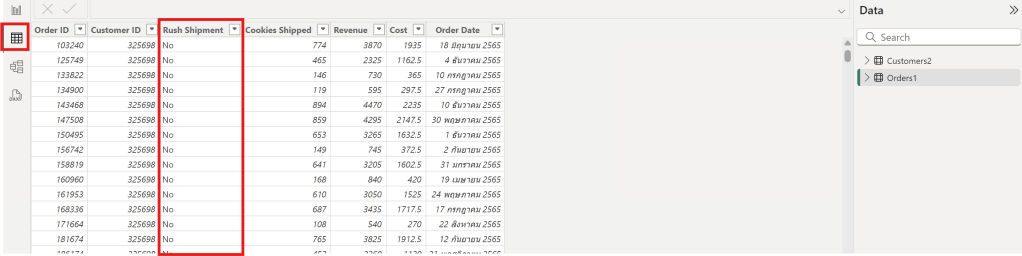
    1. In the Table view, the Rush Shipment column appears to be unnecessary from Order1 Table
    Rush Shipment Column

    2. In the Table view, the Customer2 table has a column with both “United States” and “US” as values, which should be standardized to one name.

    Customer2 table with United States and US

    Remove column “Rush Shipment”

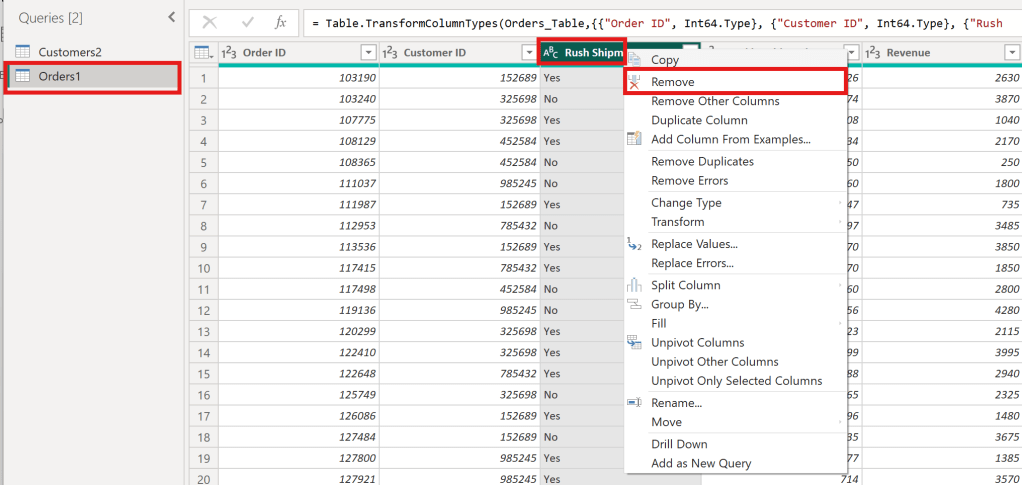
    —> Choose orders 1 Table —> Choose Column Rush Shipment —> click Remove

    Remove Column Rush shipment
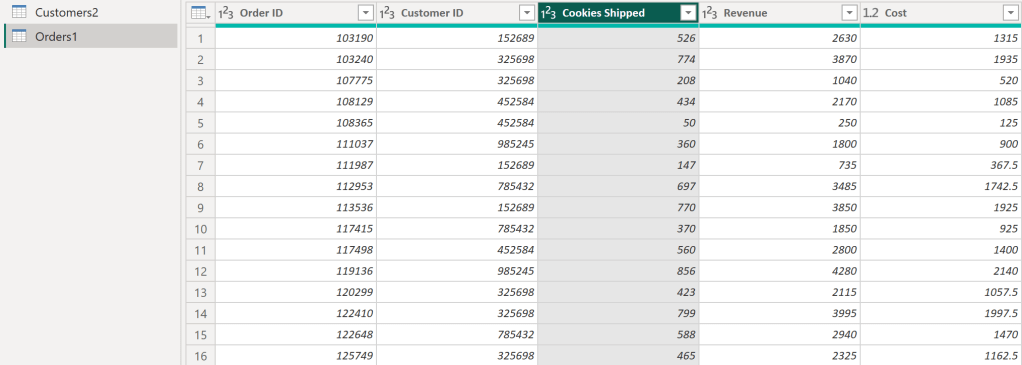
    • After following the steps in the image, It will get the desired columns as follows:
    • The Rush Shipment column has been removed.
    Rush Shipment column has been removed

    Then, clicking “Close & Apply” will result in a cleaned data table.


    Replace Value

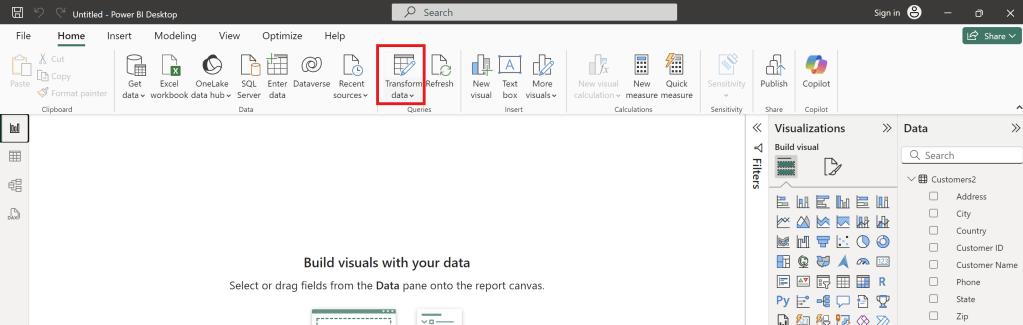
    • Click Transform Data to Replace values.
    Transform Data to replace values.
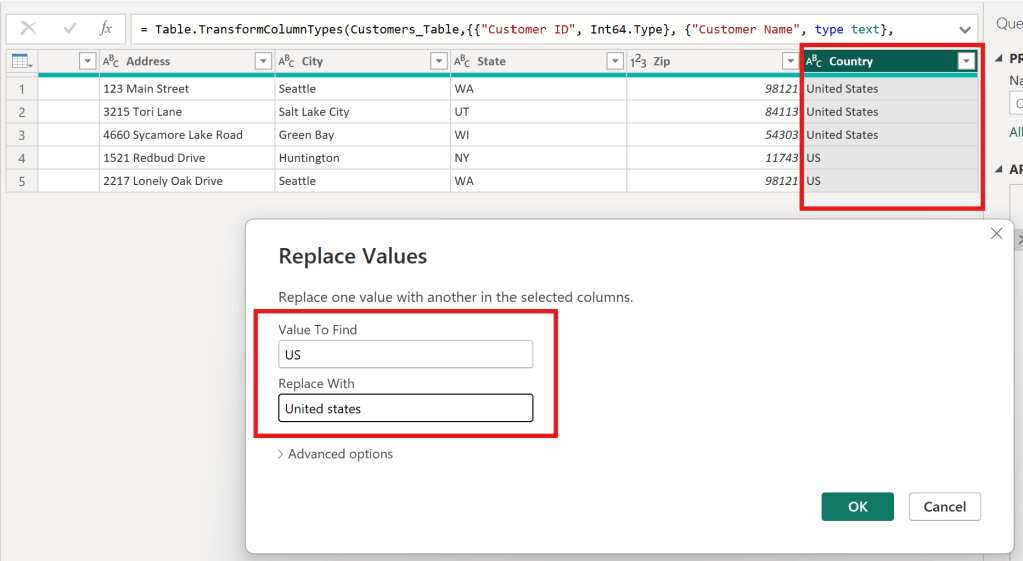
    • In the Customer 2 table, replace all “US” values in the Country column with “United States.” and then click OK
    to change US to be United States
    • As a result, Country column successfully replaced value as below.
    successfully replaced value

    Insert and format a visualization

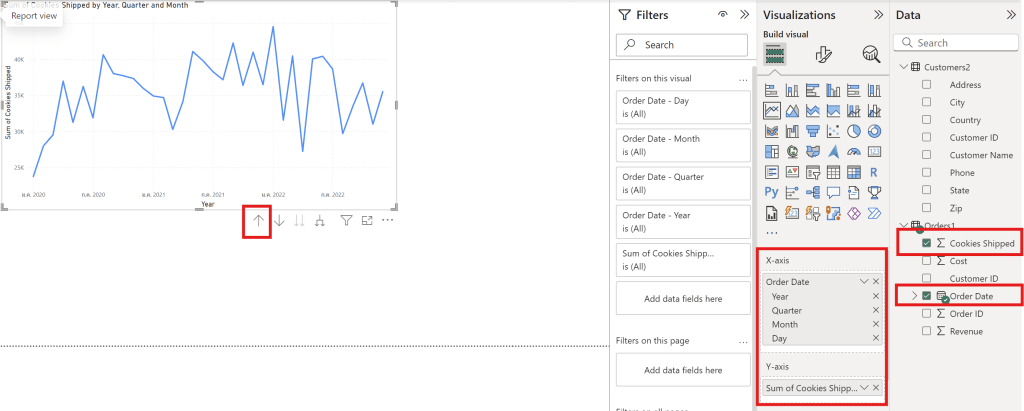
    • learn how to visualize data from multiple tables and customize graph formatting options.
    • create a line chart.
    • Use the up arrow to change the data scale (day, month, and year)
    AxisColumn of Data File
    Y-axisSum Cookies shipped
    X-axisOrder Date
    Line Chart

    Visual

    • can adjust the visual appearance of the data through the following Visual Format options.
    Visual
    • can edit Values.
    • can choose Data label to show number in graph.

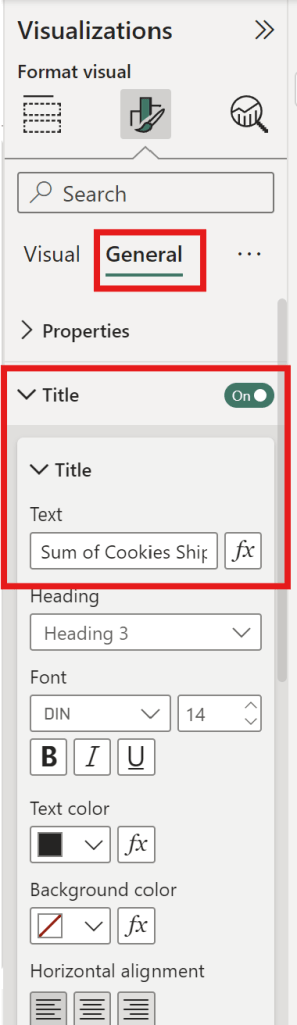
    General

    • can adjust the font size.
    • can adjust the graph’s position.
    • can adjust the graph’s color.
    • can change the title.
    General

    Practice Data Visualization in Power BI

    • You are a data analyst working with a chocolate factory and would like to help them visualize their data.
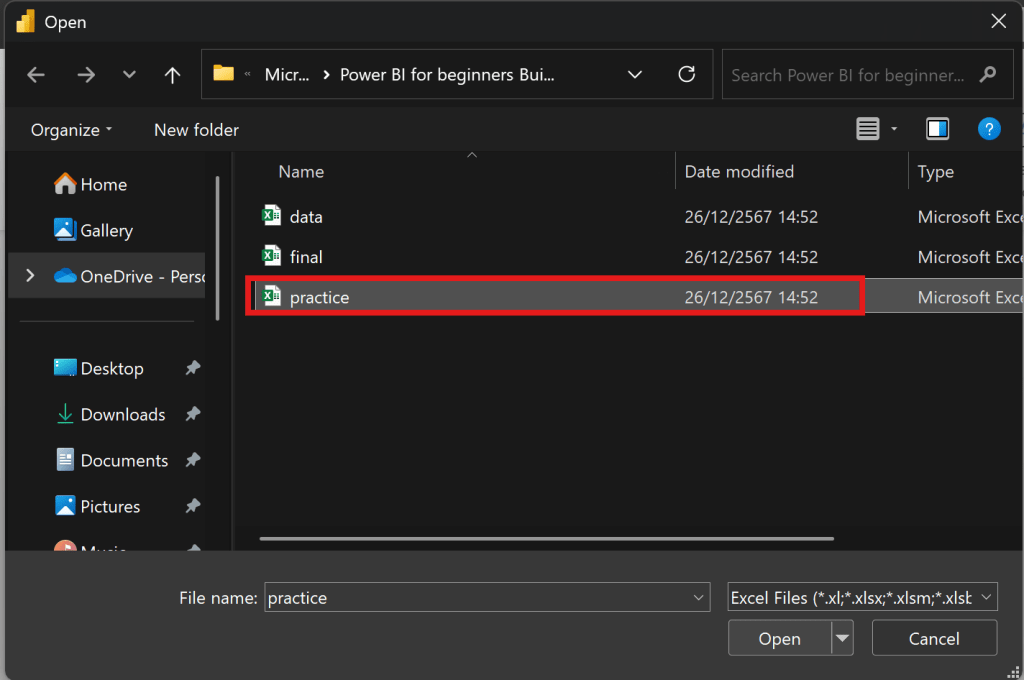
    • The data is presented in the readings under “practice.xlsx” You need to import this data to Power BI, do the necessary transformation and data cleaning using Power Queries and then build the relationship betweendiffrerent columns. Finally, I need you to create a line chart that shows the evolution of sales over time.
    • start from export file “practice
    export file “practice
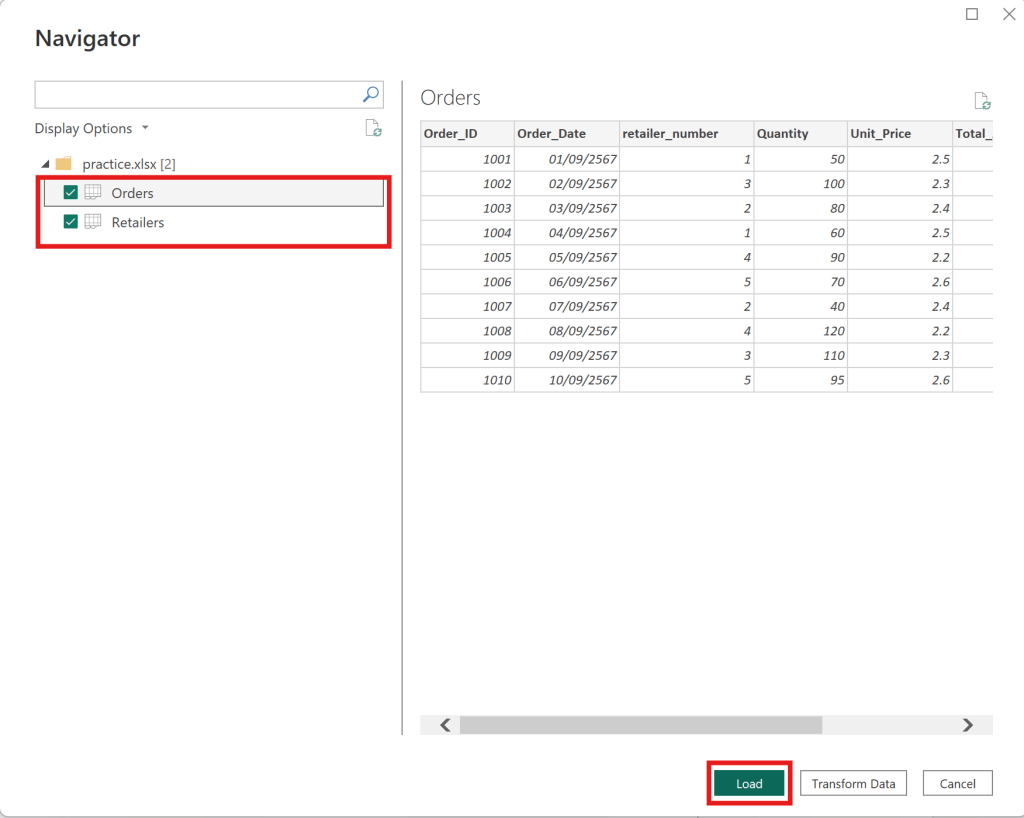
    • upload Orders table and Retailer table —> click load as below
    Orders table and Retailer table
    • Choose the Retailer Table to use Replace Value.
    • Change “UK” to “United Kingdom“.
    Change “UK” to “United Kingdom”.

    Then close and apply, and return to the dashboard.


    Relationship

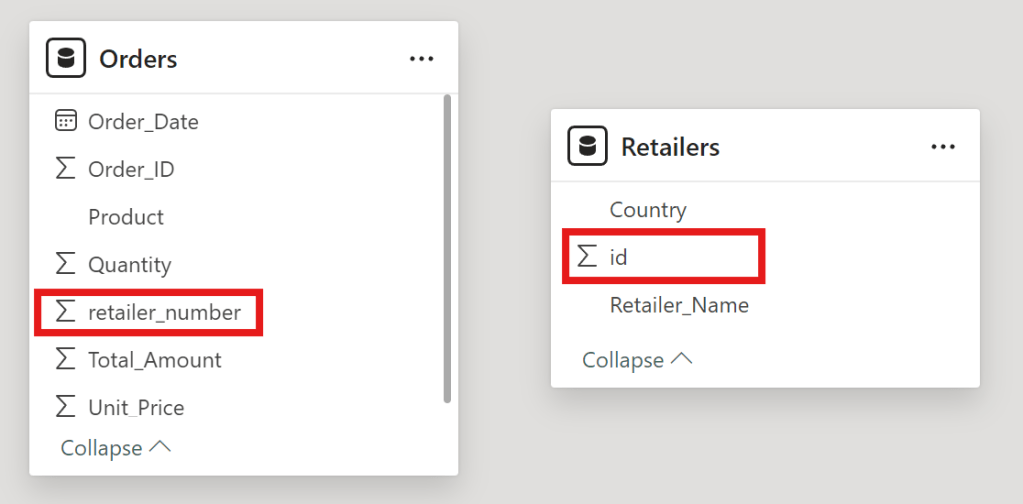
    • To create a relationship between orders and retailers in Power BI
    relationship between orders and retailers.
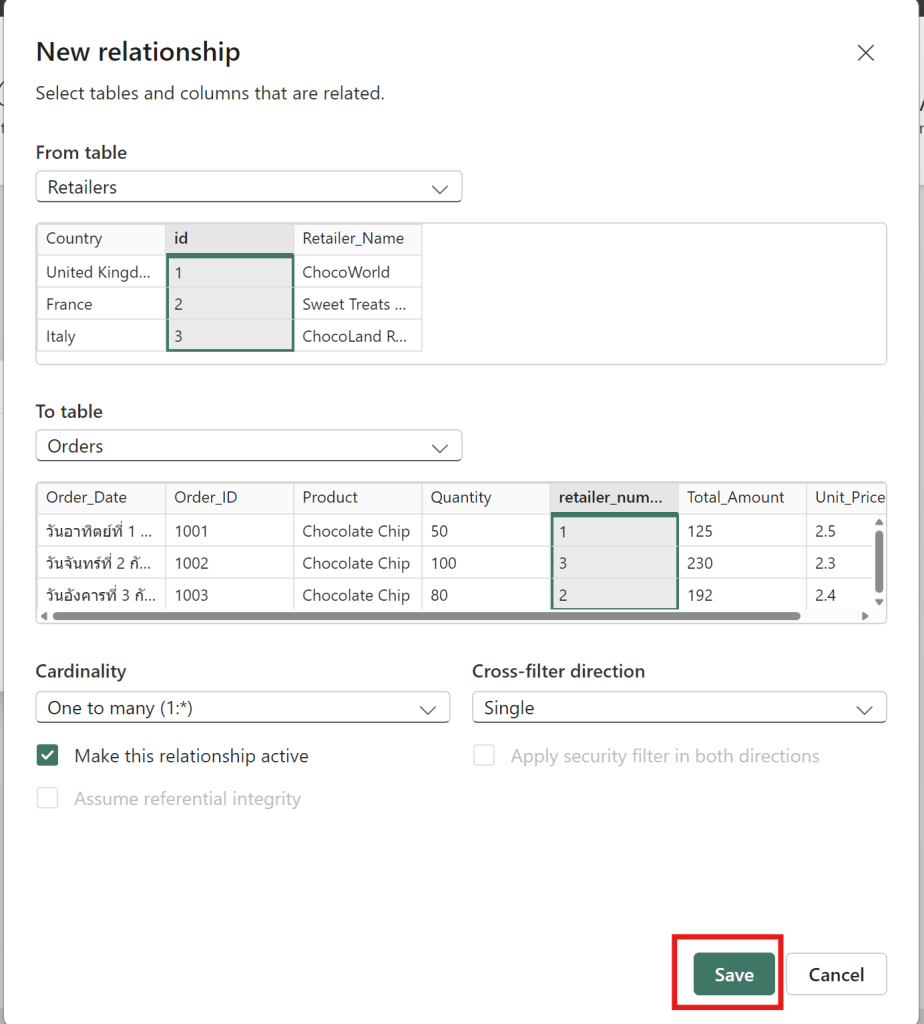
    • drag id to retailer_number
    • then click save to connect new relationship between Retailers id and Order retailer number
    connect between Retailers id and Order retailer number
    • Now that the data is cleaned and the relationship is created.

    to create Line Chart between Order_date and Quantity

    Line Chart between Retailers id and Order retailer number
    • then click line chart
    AxisColumn Data Files
    X-AxisOrder date by day
    Y-AxisQuantity

    Now I can see the data by day of the quantity of chocolate bars sold. Now that you have a better handle of importing and preparing data into PowerBI and inserting your first visual.


    Add more visuals to enhance storytelling

    • show how to add additional graphs and pages to a report, as well as explore filtering options using maps, tables and bar graph.

    Card Chart

    • to show the total revenue that we earned here at the Cookie Bliss.
    how to create card chart
    • Choose card
    • Choose fields as sum of revenue of Orders1 Table.
    card chart with revenue

    then it show revenue value


    Table

    • Show table of customer name
    customer name
    • Drag Customer name column then it show table of customer name.
    Customer name Table

    Then it can show the interaction between Customer Name and Revenue value on the dashboard.


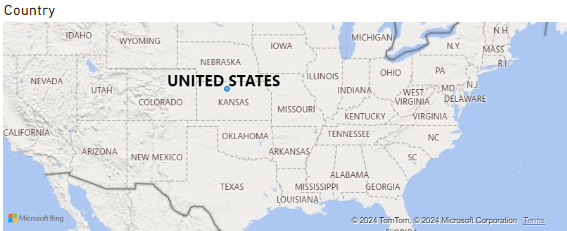
    Map

    • Choose map and then select country column
    • then it show maps of country
    Map

    Publish the report to the Power BI workspace

    • then can change theme of dashboard by this theme.
    Change theme
    • add the customer id and the phone number is good choice
    customer id and phone number
    • then add this title name as “Cookie Bliss Sales dashboard
    Cookie Bliss Sales dashboard
    • publish to Power BI —> My workspace
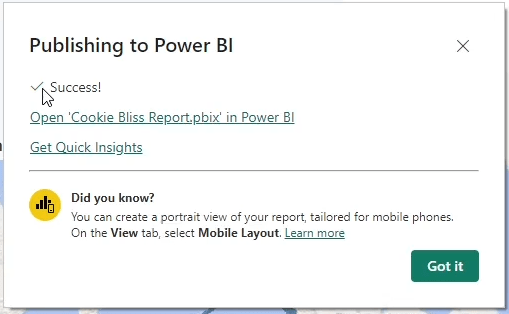
    • When it have success It finish publish Power BI
    Publish Power BI

    Cumulative Activity Scenario

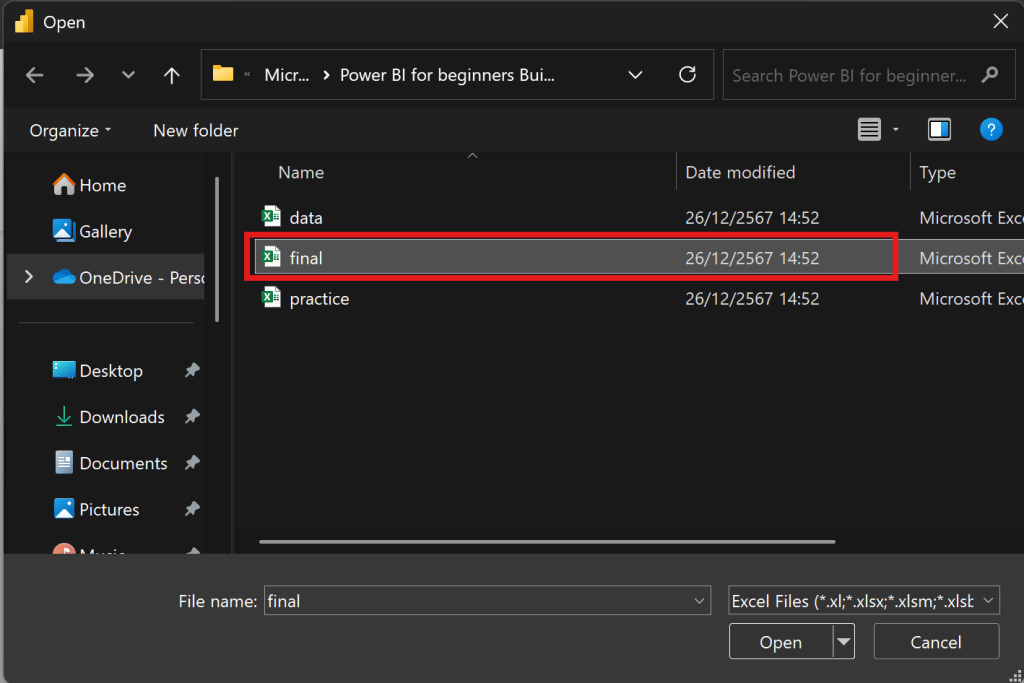
    • then get data final files to upload and do visualization
    Choose Final File

    then choose all 5 tables Customers, Feedback, Inventory, Orders and Products


    Products

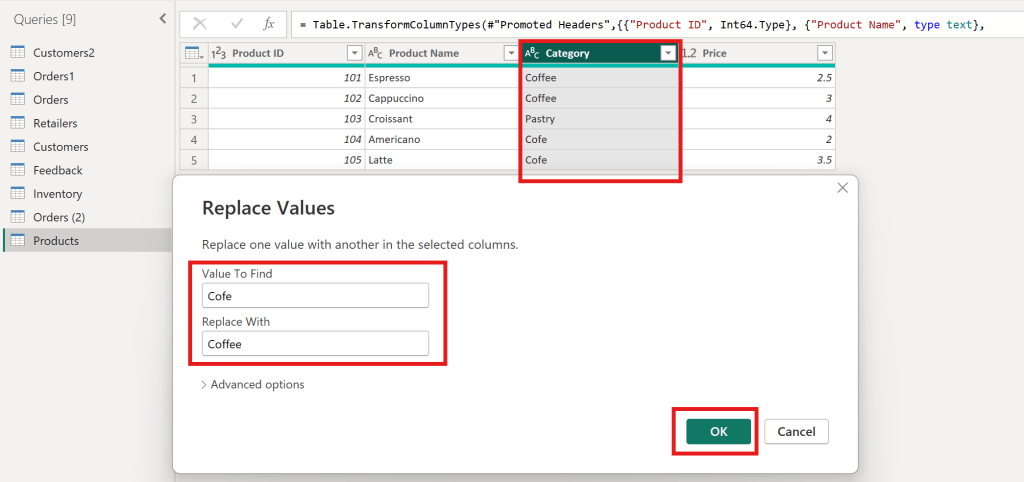
    • In Product table must clean data first
    Replace Value Product table
    • Value to find “Cofe” replace with “Coffee
    • to make category have Coffee and Pastry

    Inventory

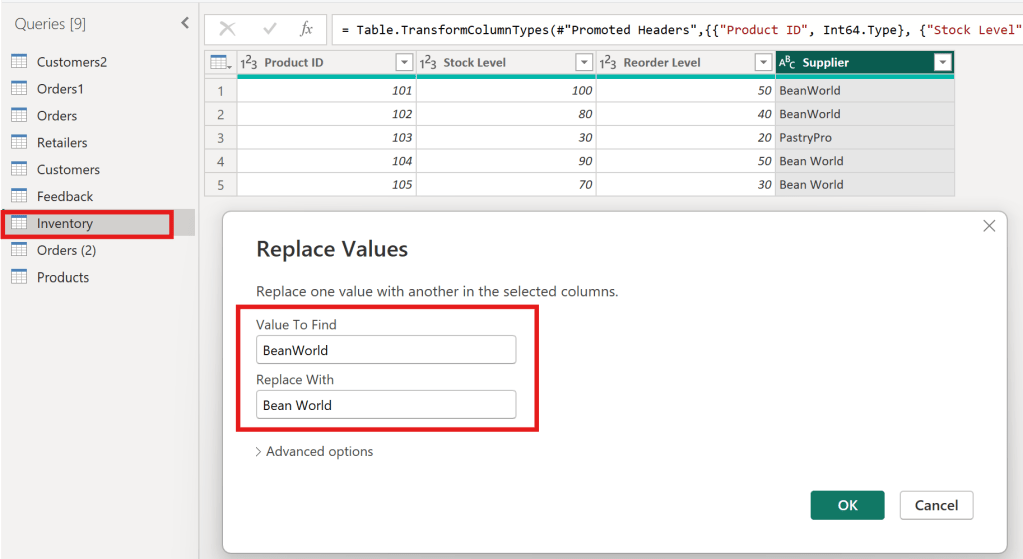
    • In Inventory table must clean data first
    Replace Value Inventory table
    • Value to find “BeanWorld” replace with “Bean World
    • to make supplier have BeanWorld and PastryPro

    Create Sales reports

    • Create Title Sales Report
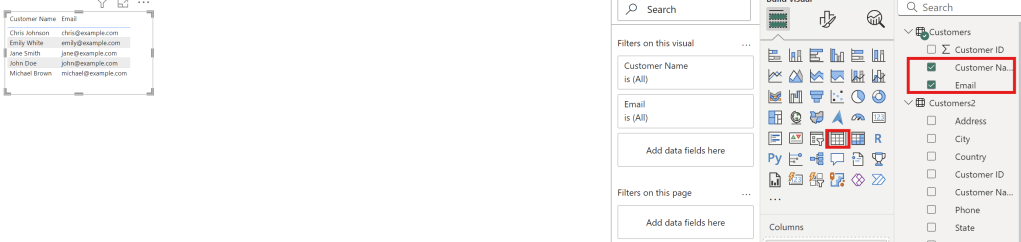
    • Create Table
    Create table in Sale Report
    • Select Customer name and Email to create table

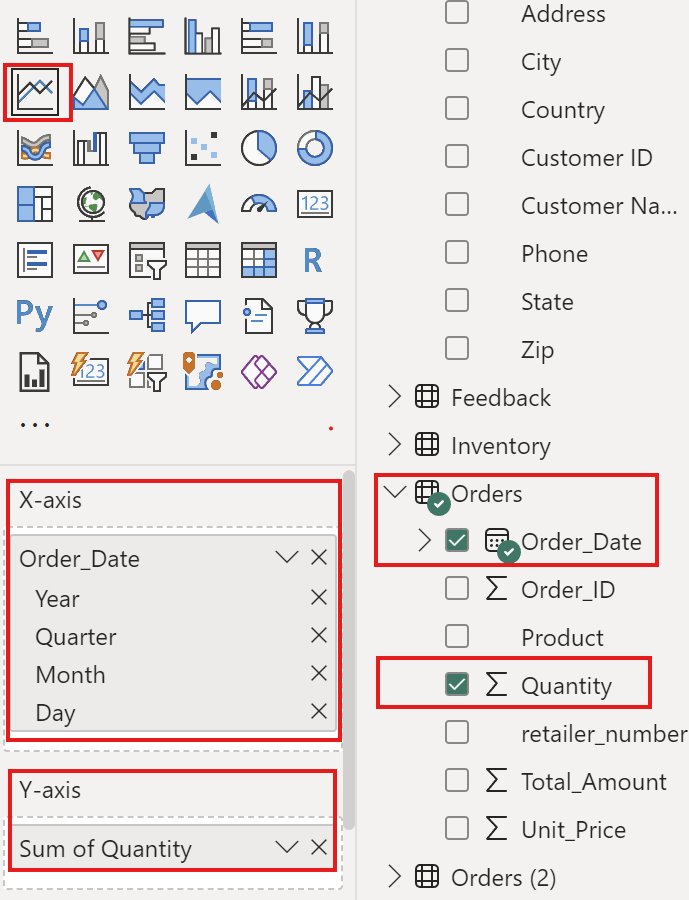
    • Create line chart
    Create line chart with order date and Quantity
    AxisColumn Final Files
    X-AxisOrder Date
    Y-AxisQuantity

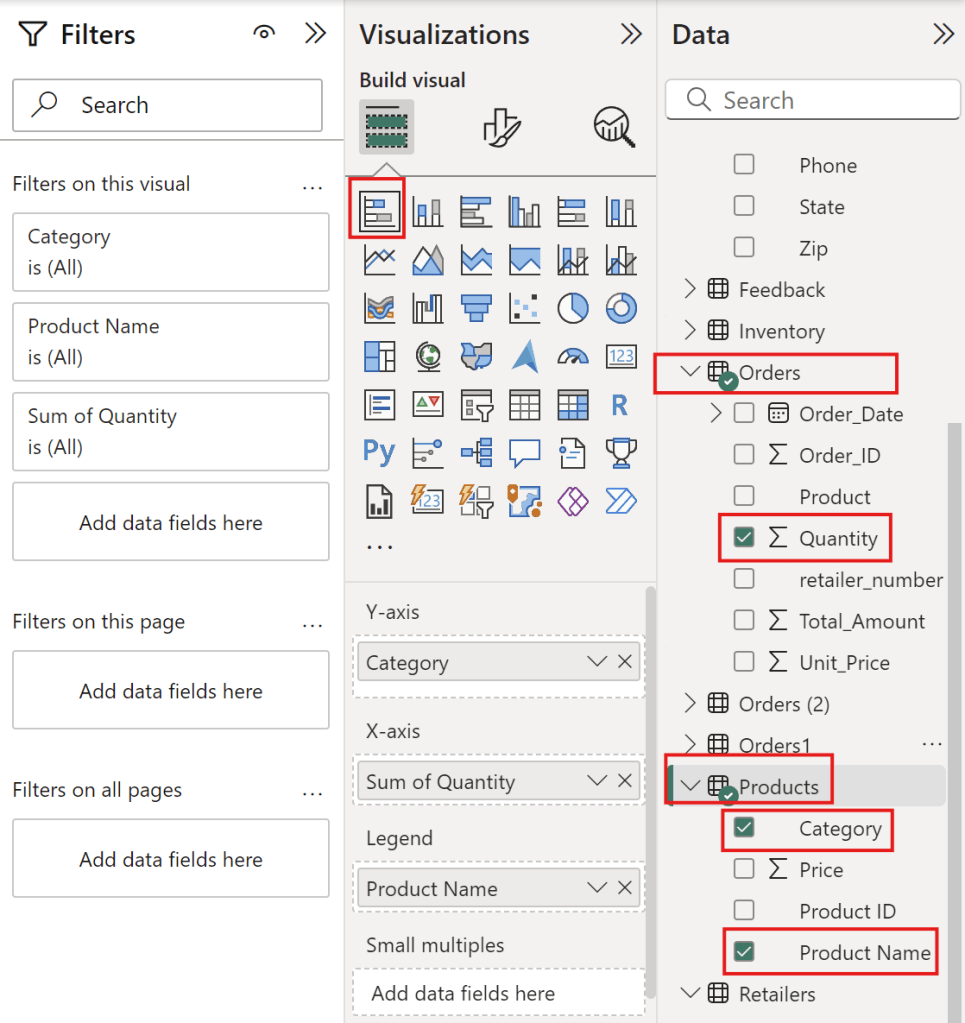
    • Create stacked bar chart
    Create stack bar chart with Category, Product Name and Quantity
    TypeColumn Final Files
    Y-AxisCategory
    X-AxisSum of Quantity
    LegendProduct Name

    to see coffee that people love eat it.


    Full Sale Report

    Sale Report

    Create management reports

    • Create Title as management reports
    • Create card of average rating
    card of management report
    • Select Feedback table with Rating column and value with average of rating.

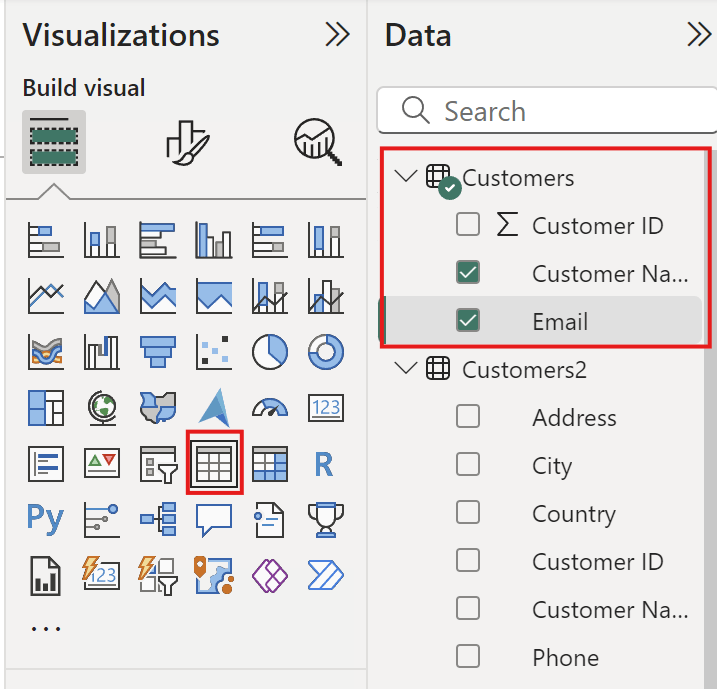
    • Create table with customer name and emails
    table with customer name and emails
    • Select Column as customer name and Email

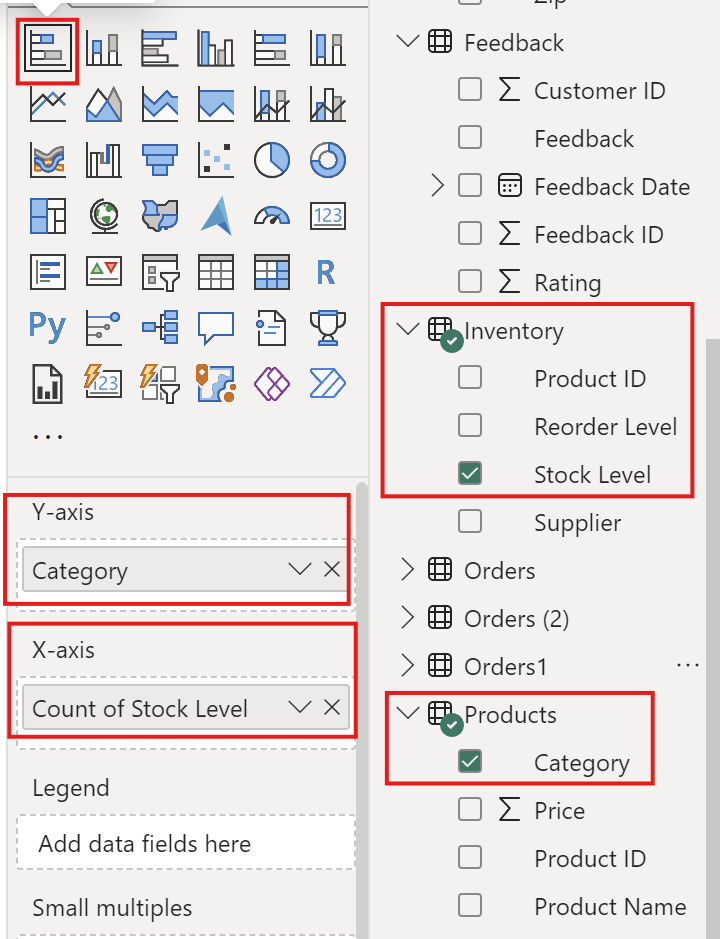
    • Create stack bar chart
    Create stack bar chart with category and Stock level
    AxisColumn Final Files
    Y-AxisCategory
    X-AxisStock Level
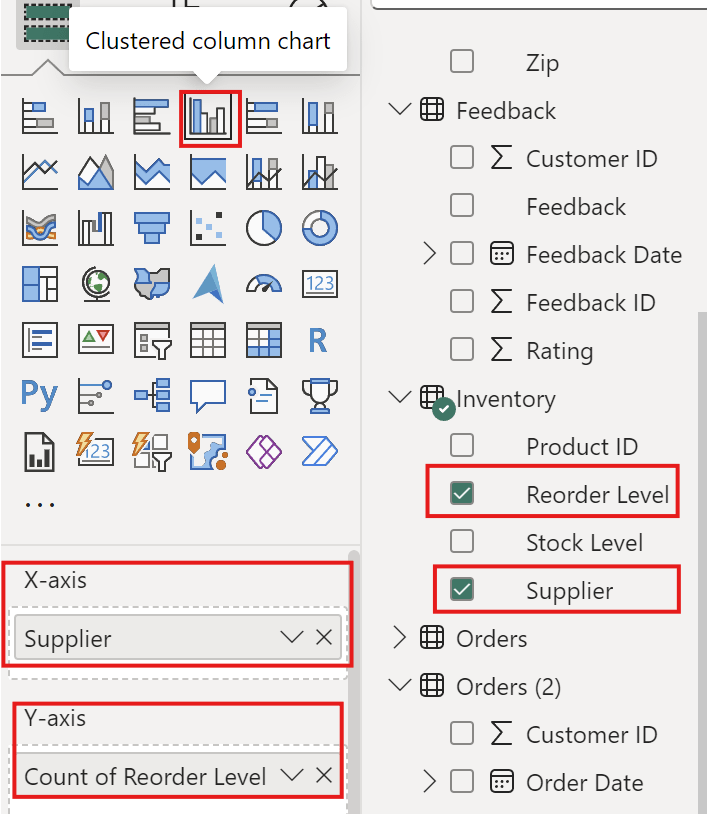
    • Create clustered column chart
    clustered column chart with Reorder Level and Supplier
    AxisColumn Final Files
    Y-AxisCount of Reorder level
    X-AxisSupplier

    Full Management Reports

    Management Report

    Summary

    I hope this project helps users create dashboards in Power BI, improve their proficiency with the tool, and learn effective techniques for using titles, colors, and themes.

    Coursera : https://www.coursera.org/account/accomplishments/verify/YWAXF815EXNK

  • 5 Steps with Project introduction SQL

    5 Steps with Project introduction SQL

    • SQL (Structured Query Language) is a powerful programming language used for managing and manipulating relational databases. It allows users to create, retrieve, update, and delete data efficiently within a database system. SQL is widely used across industries for tasks ranging from data analysis to database management.
    5 Method Of Introduction SQL
    1. Database
    2. Tables
    3. SQL Data Types
    4. Introducing Queries
    5. Writing Queries

    Table of Content

    1. Relational Database
      1. Database
        1. Patrons Table
        2. Database Benefits
      2. Tables
        1. Definition
        2. Create Table Name
        3. Record and Field
          1. Records
          2. Fields
        4. Table manner
        5. Assigned seats
        6. Create books table
      3. SQL data types
        1. String
        2. Integers
        3. Floats
        4. Schema
    2. Querying
      1. Benefits of SQL
      2. Keyword
      3. Selecting multiple fields
      4. Selecting all fields
      5. Aliasing (Rename Column)
      6. Selecting Distinct Records
      7. Distinct with multiple fields
      8. Using views
      9. Viewing your query
      10. SQL flavors
      11. Two popular SQL flavors
      12. Comparing PostgreSQL and SQL Server

    Relational Database

    • A relational database is a type of database that organizes data into structured tables (relations) with rows and columns.

    Database

    purpose of introduction with SQL

    1. Understand databases and their structure
    2. Extract Information from databases using SQL
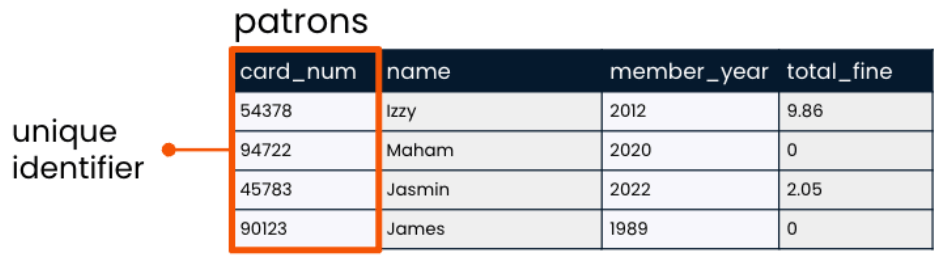
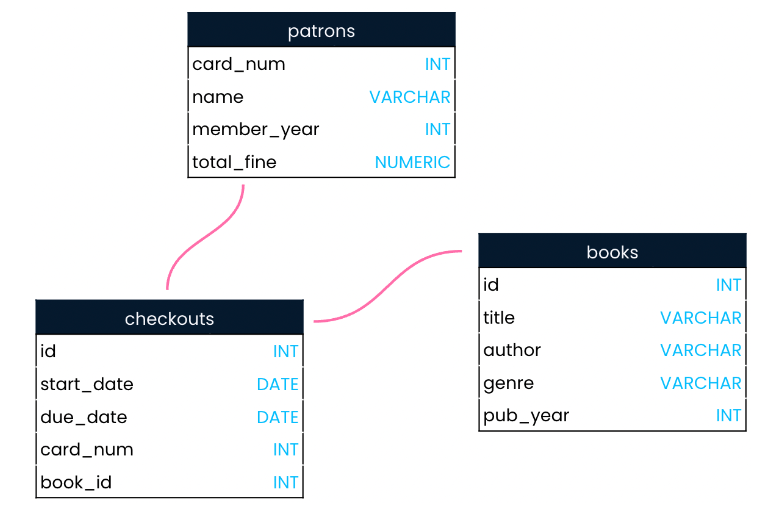
    Table show relation patrons, books and checkouts

    Patrons Table

    Column (field name)Definition
    card_numcard number
    namename
    member_yearthe year the patron became a library member.
    total_finethe total overdue

    Relational Database – -> relation between tables of data insider the database


    Database Benefits

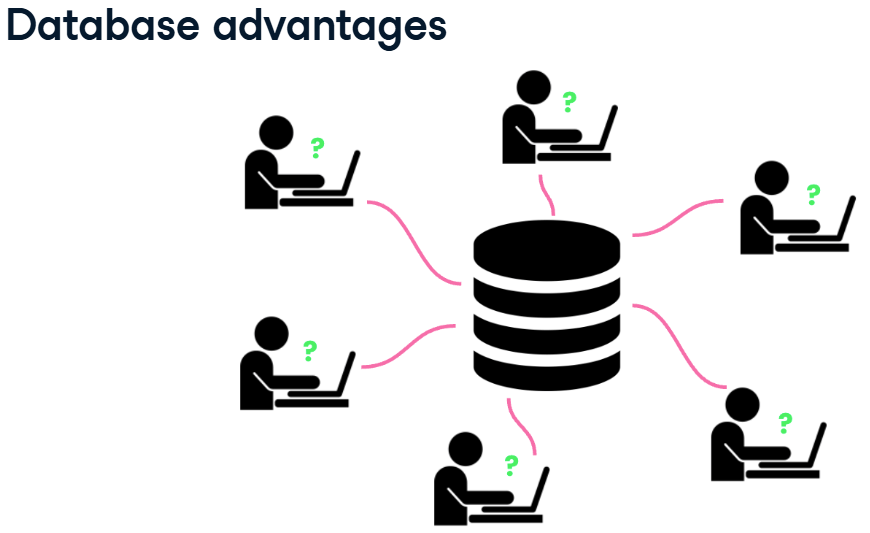
    • Database have more storage than spreadsheet application.
    • Many users can write queries to gather insights from the data at the same time.
    when a database is queried, the data stored insider the database not change.

    Tables

    Definition

    • databases are organized into tables, which hold related data about a particular subject.
    • tables are organized into rows and columns.
    • in the world of databases, rows are often referred to as records and columns as fields.
    relation between patrons table and checkouts table connect with card_num column,
    book table and checkouts table connect with id column.

    Create Table Name

    • lowercase
    • no space and in table name (use underscores instead)
    • plurals

    Record and Field

    Records

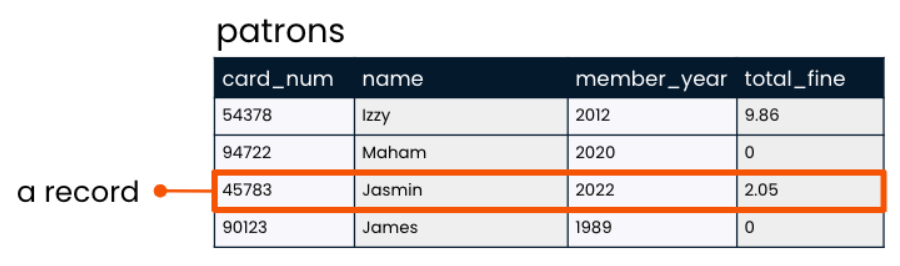
    • Laying the table : records
    • A record is a row that holds data on an individual observation.
    records pf patron table

    Fields

    • Laying the table : fields
    • A field is a column that holds one columns of data for all records.
    fields of patrons table

    Table manner

    Qualification
    Singular name
    No lowercase
    No space
    be different from other field name
    be different from the table name
    restrict of create name

    Assigned seats

    • A unique identifier is used to identify records in a table.
    • Distinct and often number.
    unique identifier

    Create books table

    • A database has been set up for this course and the books table is available here.
    • Run the code to explore what data books holds!.
    SELECT * FROM books;
    

    SQL data types

    • When a table is created, a data type must be indicated for each field. The data type is chosen based on the type of data that the field will hold a text and number.
    String data type : field name, Integer data type : field member_year, Floats data type : field total_fine
    SQL Data typeAttribute
    Stringletters or punctuation
    Integerswhole number
    Floatsfractional number

    String

    • String is a sequence of characters such as letters or punctuation.
    • VARCHAR is a flexible and popular string data type in SQL.
    String field : field name

    Integers

    • Integers is whole number
    • INT is popular integer data type in SQL.
    Integer field : field member_year

    Floats

    • Float store numbers that include a fractional part
    • NUMERIC is popular float data type in SQL
    Float field : field total_fine

    Schema

    A schema shows a database’s design, such as what tables are included in the database and any relationships between its tables.

    Schema show database’s design

    Querying

    Introducing queries

    Benefits of SQL

    • use SQL to find which books James checked out from the library in 2022.
    relation between card_num checkouts tables and patrons table.
    • use SQL queries to uncover trends in website traffic, customer reviews, and product sales.
    Question
    Which products had the highest sales last week?
    Which products get the worst review scores from customers?
    How did website traffic change when a feature was introduced?

    Keyword

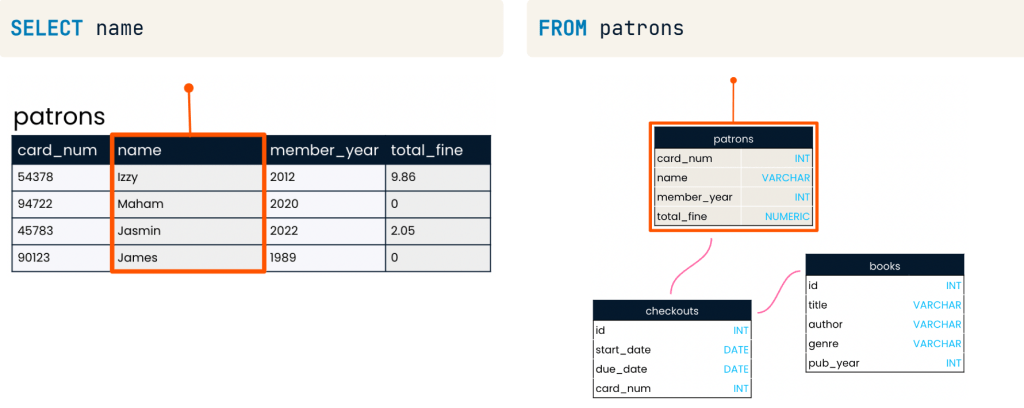
    Keyword is word for operations. Common keywords : SELECT, FROM

    • The SELECT keyword indicates which fields should be selected
    • The FROM keyword indicates the table in which these fields are located
    Keyword SELECT and FROM
    SELECT name FROM patrons;
    

    Selecting multiple fields

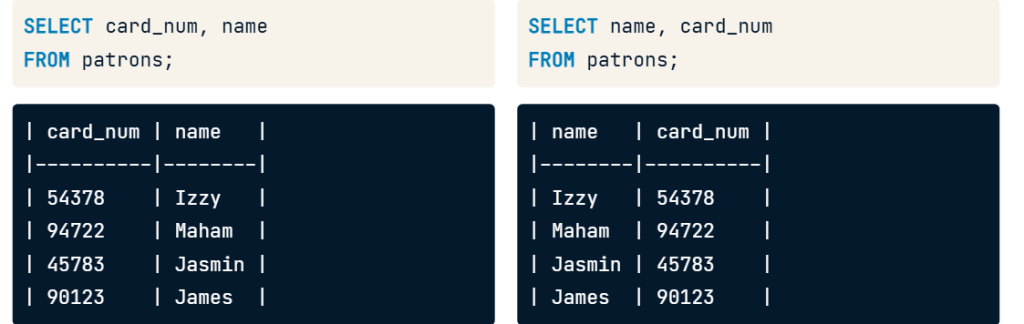
    • Can select field to that want show data example card_num and name
    SELECT card_num, name FROM patrons;
    
    • It will show field that select first as picture below.
    SELECT card_num, name vs SELECT name, card_name

    Selecting all fields

    • if you want to show all data use asterisk(*) to select all four field name.
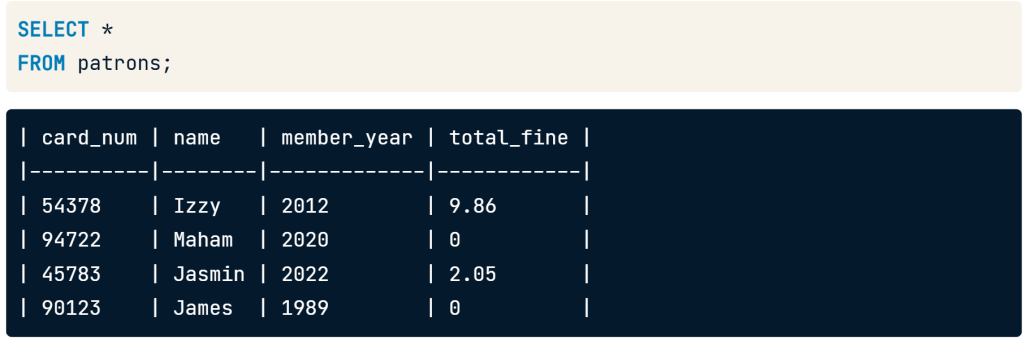
    SELECT * FROM patrons;
    
    SELECT * FROM patrons;

    Writing queries

    Aliasing (Rename Column)

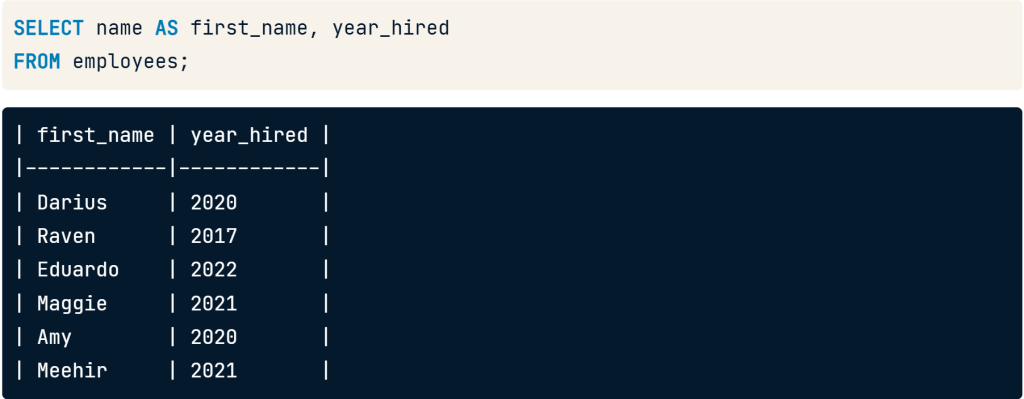
    • Use aliasing to rename column.

    Use SELECT name AS first_name to change field name from name to be first_name.

    SELECT name AS first_name, year hired
    FROM employees;
    
    SELECT name AS first_name

    Selecting Distinct Records

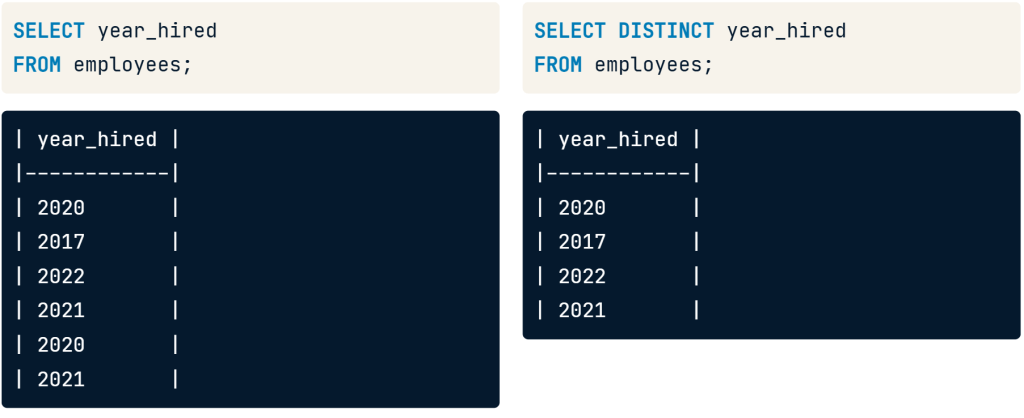
    • if you select year_hired it will show result duplicate year 2020 and 2021
    • we can add the DISTINCT keyword before the year_hired that make data show 4 year distinct.
    SELECT DISTINCT year_hired
    FROM employees;
    
    SELECT DISTINCT year_hired FROM employees;

    Distinct with multiple fields

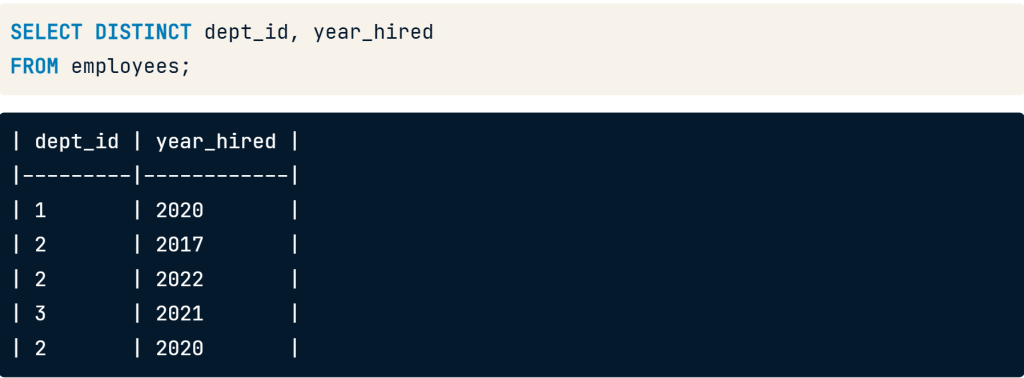
    • add the DISTINCT keyword before the fields to select
    • the department id and year_hired fields still have repeat values individually, but none of the records are the same
    SELECT DISTINCT dept_id, year_hired
    FROM employees;
    
    SELECT DISTINCT dept_id, year_hired FROM employees;

    Views

    • A view is a virtual table that save SQL SELECT statement
    • When accessed, views automatically update in response to updates in the underlying data.
    CREATE VIEW employee_hires_years AS
    SELECT id, name, year_hired
    FROM employees;
    

    CREATE VIEW, then the name will create the new view.


    Using views

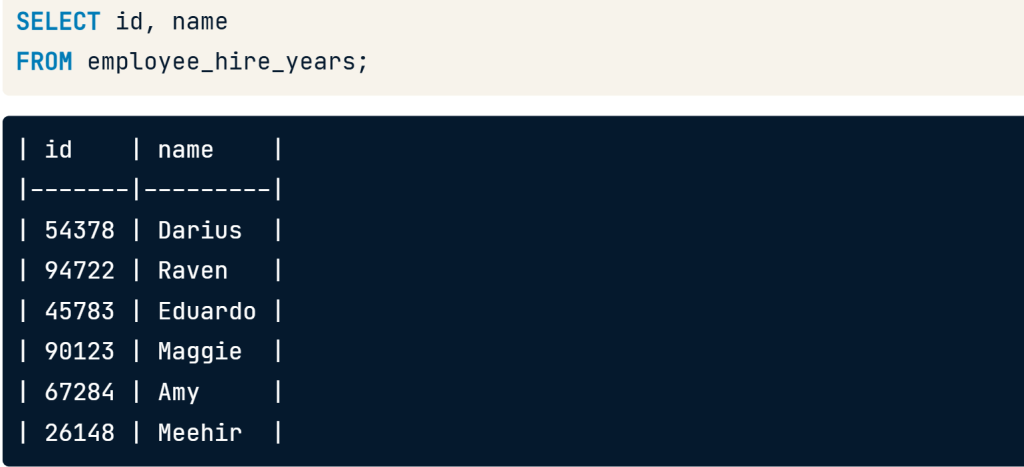
    • we can query it just as we would a normal table by selecting FROM the view.
    SELECT id, name
    FROM employee_hire_years;
    
    SELECT id, name FROM employee_hire_years;
    -- create the view:
    CREATE VIEW library_authors AS
    SELECT DISTINCT author AS unique_author
    FROM books;
    
    -- Select all columns from library_authors
    SELECT * FROM library_authors
    
    sample of CREATE VIEW use case.

    Viewing your query

    • You have worked hard to create the below SQL query:
    SELECT DISTINCT author AS unique_author
    FROM books;
    

    SQL flavors

    • Both free and paid
    • All used with relational database
    • Vast majority of keywords are the same
    • All must follow universal standards

    PostgreSQLSQL Server
    Free and open-source relational database system.Has free and paid version
    Created at the university of California, BerkeleyCreate by Microsoft
    “PostgreSQL” refers to both the PostgreSQL database system and its associted SQL flavorT-SQL is Microsoft SQL flavor, used with SQL Server databases

    Comparing PostgreSQL and SQL Server

    --PostgreSQL:
    SELECT id, name
    FROM employees
    LIMIT 2;
    --SQL Server:
    SELECT TOP(2) id, name
    FROM employees;
    
    PostgreSQL vs SQL server

    SQL Server using the TOP keyword instead of LIMIT. Notice that this keyword is the only difference between the two queries!


    Summary

    “I hope the foundational knowledge for advancing projects in the following five areas will be helpful for everyone:

    1. Database
    2. Tables
    3. SQL Data Types
    4. Introducing Queries
    5. Writing Queries”

    link from : https://www.datacamp.com/completed/statement-of-accomplishment/course/105fbc7d0c0243f35770512f02a1ad437c184bd7

    Introduction to SQL course


  • 5 Steps of Data Analysis By Using Microsoft Excel

    5 Steps of Data Analysis By Using Microsoft Excel

    Data analyst is an essential tool that enables organizations to gain deeper insights into their data. Utilizing Microsoft Excel for efficient data processing facilitates accurate and prompt decision-making while identifying trends and uncovering new business opportunities.


    Table of content

    1. The 5 steps for analyzing the sales_data_analysis.xlsx file in Microsoft Excel 365 are as follows
      1. Upload a document using the free online version of Microsoft Office 365
      2. Perform data analysis using sorting and filter tools.
      3. Perform data mining using the IF Function
      4. Create references between tables and search for information with VLOOKUP
      5. Perform data analysis using Pivot Table
        1. Pivot table
    • Excel can help data analysis
    • Excel work with a prepared spreadsheet that contains sale

    The 5 steps for analyzing the sales_data_analysis.xlsx file in Microsoft Excel 365 are as follows

    Upload a document using the free online version of Microsoft Office 365

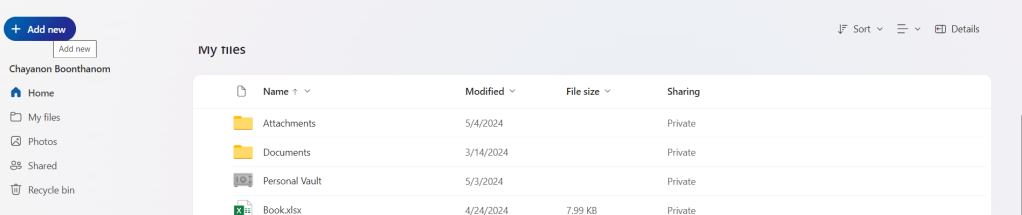
    One drive to upload excel file

    Click add newFile upload then upload → sales_data_analysis_23.10.2024

    • Go to Insert → Table to create a table that uses the header in the first column to filter data. → Click OK.
    • To Create a table to filter data, see the picture below.
    Create Table in microsoft excel 365
    • Then filter the data shown in the picture below.
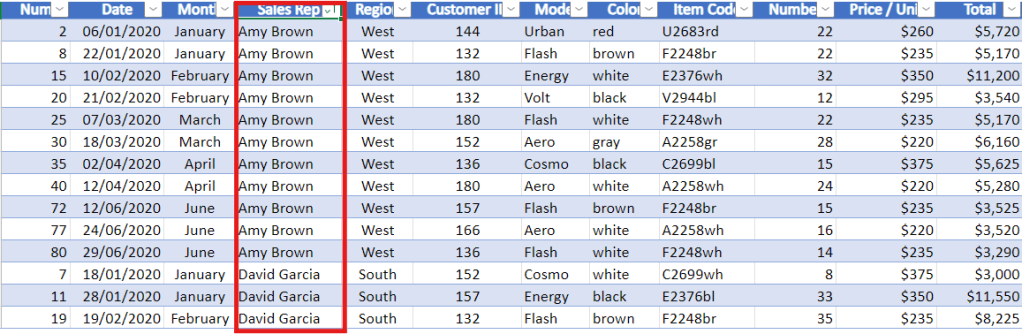
    can filter data by columns such as Num, Date, Month, Sales Rep, Region, Customer ID, etc.

    Set it up so that when you scroll down to view data in the rows below, the first column remains visible. This makes it much easier to reference the headings.


    Perform data analysis using sorting and filter tools.

    Which column should be prioritized for sorting data to make it more effective?

    representative header and then select sort A to Z to sort it in alphabetical order

    Sort the Sales Rep column from A to Z.
    • after click it has been rearrange by alphabetical Sales Rep
    • then to make it back to select sort in column date again
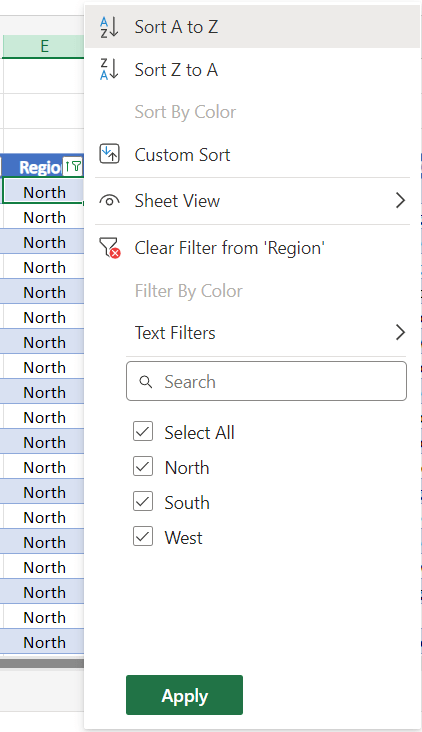
    • can sort the Region by North.
    Filter by North Region.
    • To remove the filter, click the ‘Select All‘ checkbox to display sales from the North, South, and West regions, and then click.
    • Then filter the Sales Rep column by the name David Garcia.
    Calculate in the bottom right corner.
    What you can see from data?
    Average of $7,893
    Count of 9
    Sum of $71,040
    • you can see aggregate value in the bottom right corner.

    This is how to use the sorting and filtering tools to rearrange your data.


    Perform data mining using the IF Function

    • The idea behind data mining is to take the data you already have and create new or additional data from it.
    • The IF function is frequently used.

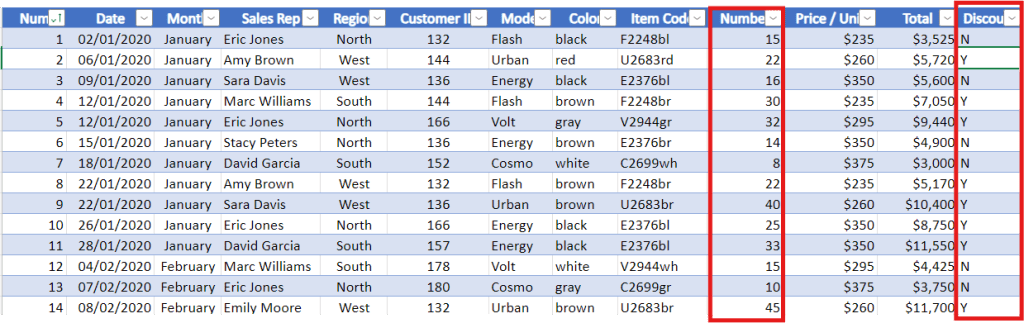
    Samples show that when an order includes 20 chairs or more, the client receives a 5% wholesale discount.

    Discount Column 3 Method
    1. Create a discount column to the right to reflect this.
    2. In the column, use ‘Y‘ for orders with a quantity ≥ 20.
    3. In the column, use ‘N‘ for orders with a quantity ≤ 20.

    Code for column Discount

    =IF(J5>=20,"Y","N")
    
    Create a discount column based on the quantity in the number column.
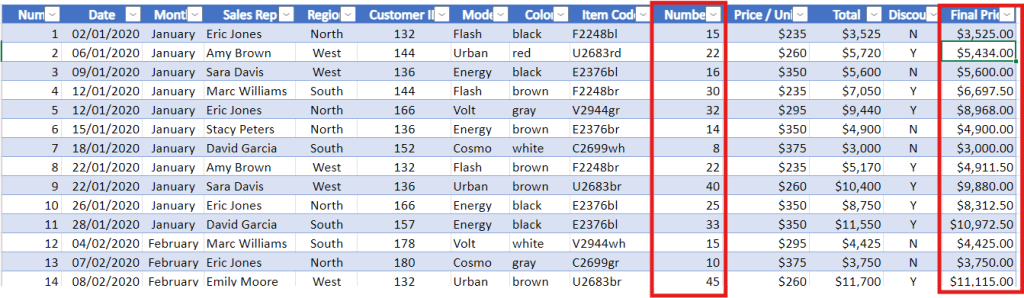
    • Final Price column

    Code for column Final Price

    =IF(J5>20,0.95*L5,L5)
    
    Create a Final Price column based on discount and number column.
    • column of Discount with Y is number ≥ 20 price is discount 5% final is 95% from total column
    • column of Discount with N is number ≤ 20 price is same as the total

    Create references between tables and search for information with VLOOKUP

    Goal is to insert the company name using the client ID.

    1. Create column Company Name between Customer ID and Color
    2. Create column Company Name Representative between Company name and model

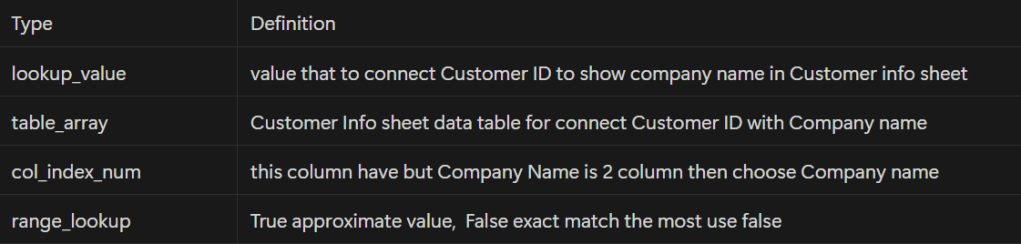
    The explanation of the variables used in VLOOKUP.

    VLOOKUP(lookup_value, table_aray, col_index_num, [range_lookup])
    

    Create Company name column

    =VLOOKUP(F5,'Customer Info'!$A$4:$C$12,2,FALSE)
    

    Create Company name representative

    =VLOOKUP(F5,'Customer Info'!$A$4:$C$12,3,FALSE)
    
    Customer Info sheet data

    to connect data between sales data and customer info sheet

    Type of VLOOKUP
    Create column Company name and Company Name Representative column in sale data sheet

    can adding a dollar sign in front A4 and C12 to make data not change


    Perform data analysis using Pivot Table

    Method to start

    • Typing control A and it will automatically highlight all the data in the table
    • Then insert ———> Pivot table ———> click okay
    Create Pivot table in new worksheet
    • Recommend selecting new worksheet so it placement does not affect the other data that already exists

    Pivot table

    • define categories as either filters, columns, rows, value
    TypeDefinition
    Filter2 Category
    ColumnCategory can specified as a column to fit with data
    RowCategory can specified as a row to fit with data
    ValuesMust use with number
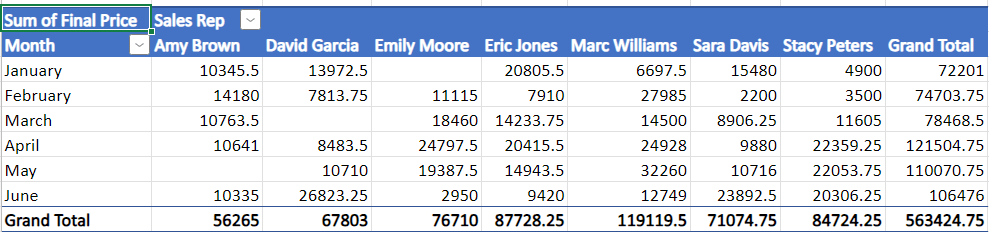
    • 1. drag Final Price to Value of pivot table
    • 2. drag Sales Rep to columns of pivot table
    • 3. drag Month to row of pivot table
    Table prepare month with Sale Rep

    how many chairs of each model were sold in each month?

    Pivot table many chairs of each model per month.
    • Finally you have learned how to create pivot tables to summarize and look at comparisons within your data.

    Access full Microsoft excel through below link:

    Coursera Project Network Certificate

    https://www.coursera.org/account/accomplishments/verify/2F13S7V2LEZF

    Summary

    Data analysts help organizations gain valuable insights from data. Using Microsoft Excel enhances decision-making by processing data efficiently and identifying trends and opportunities.